If your Roborock map suddenly disappeared, rotated sideways, or grew "ghost rooms" that do not exist, you are not alone — mapping glitches are the second most common Roborock complaint we see, right after Wi-Fi drops. The good news: nine times out of ten, the fix takes under 10 minutes and does not require a factory reset. The trick is matching your symptom to the right fix instead of trying random solutions.
This guide is organized by what you actually see on the screen. Find your symptom below, jump to that section, and try the fixes in order.
30-Second Summary
- Most common cause: dirty wall sensor or LiDAR turret — clean it first.
- Second most common: the dock got moved or has obstructions within 0.5 m on each side / 1.5 m in front.
- First step for almost every symptom: power cycle the robot, then run a full clean from the dock.
- Last resort: reset the map (you will lose room labels and no-go zones).
- Time to fix: 5-15 minutes for most issues.
Which Symptom Do You Have?
| What you see | Most likely cause | Jump to |
|---|---|---|
| Map vanished, robot starts a fresh map every clean | Map Saved Mode disabled, or memory corruption | Symptom 1 |
| Map is rotated 30°-90° sideways | Dock moved or has obstructions | Symptom 2 |
| Grey or black patches where rooms should be | Dirty wall sensor (right side of robot) | Symptom 3 |
| "Phantom" rooms or walls behind mirrors / glass | LiDAR reflecting off shiny surfaces | Symptom 4 |
| "Mapping failed" error mid-clean | Stuck LiDAR turret or firmware bug | Symptom 5 |
| Random shapes added to existing rooms | Curtains, sunlight, or moved furniture | Symptom 6 |
| Not sure / multiple symptoms | Run universal fixes | Universal fixes |
Symptom 1: The Map Disappeared or Resets Itself {#symptom-1}
What it looks like: You open the Roborock app and the saved floor plan is gone — replaced by a blank screen, or the robot starts drawing a new map from scratch every time it cleans.
Why it happens:
- Map Saved Mode is off. Some older Roborock models ship with map saving disabled by default. Without it, the robot wipes the map after every clean.
- You moved the robot mid-clean. Picking up the robot and placing it in a different room confuses its position tracking, and the app may discard the partial map.
- App-side glitch. The map is still on the robot but the app cannot load it — usually a sync or cache problem. We have seen this confirmed by Wi-Fi connection issues too.
- Firmware corruption. Rare, but a failed firmware update can wipe stored maps.
Fix it (in this order):
- Check Map Saved Mode is enabled. In the Roborock app: Settings → Map Save Mode → toggle ON. If you do not see this option, your model uses Multi-Floor Mapping instead — that is fine, it saves automatically.
- Force-quit and reopen the app. On iOS, swipe up to close. On Android, clear it from recents. Reopen and wait 30 seconds for the map to sync from the robot.
- Power cycle the robot. Press and hold the power button until the robot powers off (a few seconds on most models). Wait 10 seconds. Press it again to wake the robot. Place it on the dock.
- Run one full cleanup from the dock. Do not pick the robot up. Let it leave the dock on its own, clean the whole house, and return. This is when the map saves.
- Check the firmware. App → Settings → Firmware Update. If an update is pending, install it and repeat step 4.
One Roborock owner described this on the official forum: "My S5 map vanished after a power outage. I tried everything until I realized I had to do a full clean from the dock without picking it up — that was the only way it would save again." If you have ever moved the robot during a clean, this is almost always the cause.
Symptom 2: The Map Is Rotated at a Weird Angle {#symptom-2}
What it looks like: Your floor plan is tilted 30°, 45°, or even 90° in the app — walls that should be horizontal show up diagonally.
Why it happens: The robot uses the dock as its zero point for orientation. If you moved the dock, or if there are obstructions blocking the LiDAR's view of the dock during initial scan, the robot calibrates to the wrong angle.
Fix it:
- Check dock clearance. Roborock's official spec is at least 0.5 m of clear space on each side and 1.5 m in front of the dock. Anything closer — a sofa leg, a wall, a basket — confuses the robot's first scan after charging.
- Move the dock to a corner with one straight wall behind it. A dock placed against a flat wall (not a curved one, not in an alcove) gives the LiDAR the cleanest reference.
- Reset the current map. App → Map Settings → Reset Map. Yes, you will lose room labels and no-go zones. There is no way to "un-rotate" an existing map.
- Run a full mapping clean from the new dock position. Do not interrupt it.
- Re-add your room labels and zones once the new map is complete.
If the rotation comes back after a few cleans, check that nothing in front of the dock has changed — even a new floor mat or a chair leg can cause it. We have a separate guide on what to do when your Roborock is not returning to dock, which is often the same root cause.
Symptom 3: Grey or Black Areas on the Map (Missed Rooms) {#symptom-3}
What it looks like: Whole sections of your house are missing or shaded grey on the map. The robot ignores those areas during cleaning.
Why it happens: This is almost always a dirty wall sensor. The wall sensor sits on the right side of the robot, behind a small black plastic window. When dust covers it, the robot cannot tell how close it is to walls, so it avoids the area entirely. Roborock support confirms this is the most common cause of missed areas.
Fix it:
- Wipe the wall sensor. Dampen a soft cloth (microfiber works best) with a tiny bit of water. Gently wipe the small black sensor window on the right side of the robot. Do not use alcohol on this part — it can fog the plastic.
- Wipe the cliff sensors. Flip the robot upside down. You will see 4-6 small black or red windows around the edge of the bottom. Wipe each one with the same damp cloth. As one Q Revo owner put it on the official forum: "I spent a week chasing 'mapping failed' errors. Turned out one cliff sensor had a tiny dust bunny stuck to it. Wiped it, and the map filled in on the next clean."
- Check the LiDAR turret on top. If it does not spin freely when you nudge it gently with a finger, the bearing is jammed — usually with hair. Remove any debris carefully.
- Run a full clean from the dock. Grey areas should be filled in within one or two passes.
If the grey patches are in the same spot every time and sensor cleaning does not fix it, the wall sensor itself may be defective. This is more common on units that are 2+ years old or that were dropped at any point. Roborock will replace it under warranty if you contact support with photos.
Symptom 4: Ghost Walls or Phantom Rooms (The Mirror Problem) {#symptom-4}
What it looks like: The map shows a "room" or wall that does not exist — usually right next to a mirror, a glass cabinet, a TV screen, or a polished metal surface.
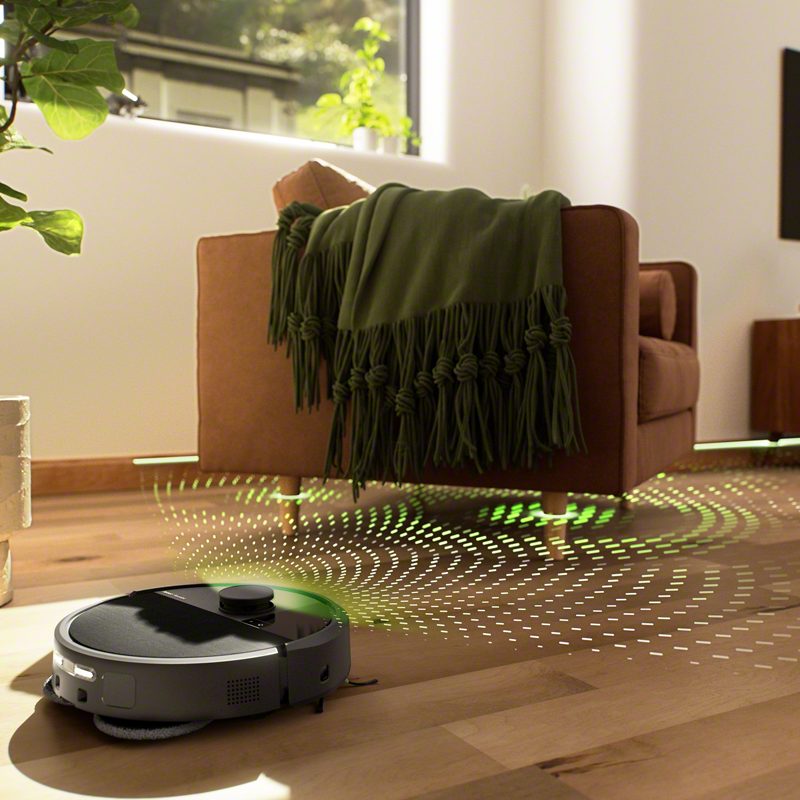
Why it happens: Roborock's LiDAR fires a laser and measures the bounce. Mirrors and glass reflect that laser back as if there were a real room behind them. The robot literally thinks it sees a room inside your mirror.
Fix it:
- Identify the reflective surface. Walk through the area where the ghost room appears. Look for full-length mirrors, glass coffee tables, large TVs at floor level, glass shower doors, or chrome appliance bases.
- Set a virtual wall over the ghost area. In the app: Map Settings → Virtual Wall → draw a line in front of the reflective surface. The robot will treat it as a hard boundary and stop trying to map "behind" it.
- For movable mirrors (full-length leaning mirrors), cover the bottom 30 cm with tape or cloth during cleaning. This is the simplest fix and you can remove the cover after. "My S6 kept trying to clean inside my bedroom mirror," one owner reported on the Roborock forum. "A virtual wall in the app fixed it instantly."
- Reset the map if the ghost area is locked in. Once a phantom room is in the saved map, no amount of cleaning will remove it. Reset and remap with the virtual wall already in place.
Glass cabinets and TVs are usually fine if they sit well above the floor — the LiDAR scans at the height of the turret on top of the robot, which is just a few inches off the ground. It is the floor-level reflective surfaces (full-length mirrors, glass coffee tables, chrome appliance bases) that cause most ghost-room reports.
Symptom 5: "Mapping Failed" Error Mid-Clean {#symptom-5}
What it looks like: The robot starts cleaning fine, then stops after a few minutes with a "mapping failed" or "lost localization" error.
Why it happens:
- LiDAR turret stuck. Hair wrapped around the bearing prevents the laser from rotating. Without 360° scans, the robot cannot map.
- Sudden large change in environment. A door that was open last clean is now closed, or a piece of furniture moved a meter.
- Empty large room with no reference points. LiDAR needs walls and objects to triangulate. A huge empty hall can throw it off.
- Firmware bug. A few firmware versions in 2025 had a known regression that caused mid-clean mapping crashes.
Fix it:
- Check the LiDAR turret on top of the robot. Try to spin it gently with your finger. It should turn freely with very light resistance. If it grinds, sticks, or makes a clicking sound, you likely have hair wrapped under it. Carefully remove any hair you can see — do not pry the turret off, just clean around the base. If it still grinds, that is a hardware issue and you may also notice unusual noise during operation.
- Update firmware. App → Settings → Firmware Update. Several mid-clean mapping crashes were patched in 2025; running the latest firmware fixes most software-side cases.
- Run the failing clean again, but with the door/furniture in the same position as the original successful map. If it works, you know the issue was an environment change.
- If the room is genuinely empty (large empty garage, big open studio), add some reference objects — a chair, a box, anything the LiDAR can use as an anchor — and remap.
Symptom 6: Nonexistent Areas Added to Rooms {#symptom-6}
What it looks like: Your living room map suddenly has a weird bulge, square, or extension that does not match the actual room. Or the robot insists there is a "room" where there is just empty floor.
Why it happens:
- Floor-length curtains or table cloths that brush the LiDAR scan line trick the robot into thinking there is a wall.
- Direct sunlight through a window can saturate the optical sensors and create false readings.
- Furniture moved since the original map was made. The robot tries to merge the old map with new readings.
Fix it:
- Walk the affected area and look for anything new at LiDAR height — around shin level, where the turret on top of the robot scans. Curtains, plant leaves, blanket edges, dog beds — anything soft and in the wrong spot can fool the sensor.
- Close blinds during cleaning if the bulge appears near a sunny window. Bright direct sunlight is a known LiDAR problem.
- Run a normal clean and let the robot self-correct. Most ghost shapes disappear after 2-3 cleans as the robot updates its map with consistent data.
- If the shape sticks, edit it out manually. App → Map Editor → Erase. You can erase parts of a room without resetting the whole map.
Universal Fixes: Try These First If You Are Not Sure {#universal-fixes}
If none of the symptoms above match, or if you have multiple issues at once, run these six steps in order. They solve most mapping problems:
- Power cycle. Press and hold the power button until the robot powers off, wait 10 seconds, press it again.
- Update firmware. App → Settings → Firmware Update.
- Wipe sensors. Wall sensor (right side), cliff sensors (bottom), LiDAR turret (top — make sure it spins freely).
- Check Wi-Fi signal at the dock. Mapping data syncs over Wi-Fi. If the dock is in a Wi-Fi dead zone, the map may not save. Same root cause as Wi-Fi connection drops.
- Check dock placement. 0.5 m clear on each side, 1.5 m in front, against a flat wall.
- Run a full clean from the dock. Do not pick up the robot. Let it return on its own.
Most of the time, this sequence fixes things without needing to reset anything. If you are also seeing the robot going in circles or not picking up debris, those are usually symptoms of the same dirty-sensor root cause.
When to Reset the Map (Last Resort)
Resetting the map should be your last move because you will lose:
- All room labels and dividers
- All no-go zones, no-mop zones, and virtual walls
- All custom cleaning preferences per room
- Multi-floor mapping data (on some models, only the current floor)
You will not lose firmware, Wi-Fi settings, or your account.
To reset: App → Map Management → Reset Map → confirm. Then run a full mapping clean.
Skip the reset if: the issue is sensor-related (Symptom 3 or 5). Resetting will not fix dirty sensors and you will just rebuild the same broken map.
When to Contact Roborock Support
Most mapping issues are user-fixable, but contact Roborock support if:
- The LiDAR turret physically does not spin even after cleaning around the base.
- "Mapping failed" errors return after a clean firmware install and a full sensor wipe.
- The robot has been dropped or got water inside it.
- Grey areas appear in the same spot even after sensor cleaning and a full remap.
- Your unit is still under warranty (typically 1 year, longer in some regions) — Roborock often replaces defective sensors free of charge.
Have your serial number ready (under the dust bin lid) and a video or screenshot of the broken map. You can reach Roborock at support.roborock.com.
Related Guides
- Roborock Not Connecting to Wi-Fi
- Roborock Not Returning to Dock
- Roborock Going in Circles
- Roborock Not Picking Up Debris
- Roborock Making Noise
- Roborock Brush Not Spinning
Frequently Asked Questions
Why does my Roborock keep losing its map?
The most common reason is that Map Saved Mode is disabled, or that you picked up the robot mid-clean before it returned to the dock. Roborock only saves the map after a successful full clean ending at the dock. Check your app settings, then run one uninterrupted clean from the dock to lock in a new map.
How do I reset my Roborock map?
Open the Roborock app → Map Settings (or Map Management) → Reset Map → confirm. The robot will start fresh on its next clean. Note that you will lose all room labels, no-go zones, and virtual walls — re-add them after the new map is built.
Will factory resetting my Roborock delete the map?
Yes. A factory reset wipes the map, all custom zones, your Wi-Fi credentials, and unpairs the robot from your account. Only use it as a last resort. For most mapping problems, a simple Map Reset (which keeps Wi-Fi and account settings) is enough.
Can mirrors mess up Roborock mapping?
Yes — and it is one of the most common causes of "ghost rooms" on the map. Roborock's LiDAR fires a laser and measures the bounce, but mirrors and floor-level glass reflect the laser as if there were a real room behind them. Set a virtual wall in front of any floor-length mirror, glass cabinet, or polished metal surface to fix it.
How often should I clean Roborock sensors to prevent mapping errors?
Wipe the wall sensor and cliff sensors every 2-3 weeks in a normal home, or weekly in homes with pets. The LiDAR turret on top should be checked monthly to make sure it still spins freely. This single habit prevents most of the mapping issues we see.