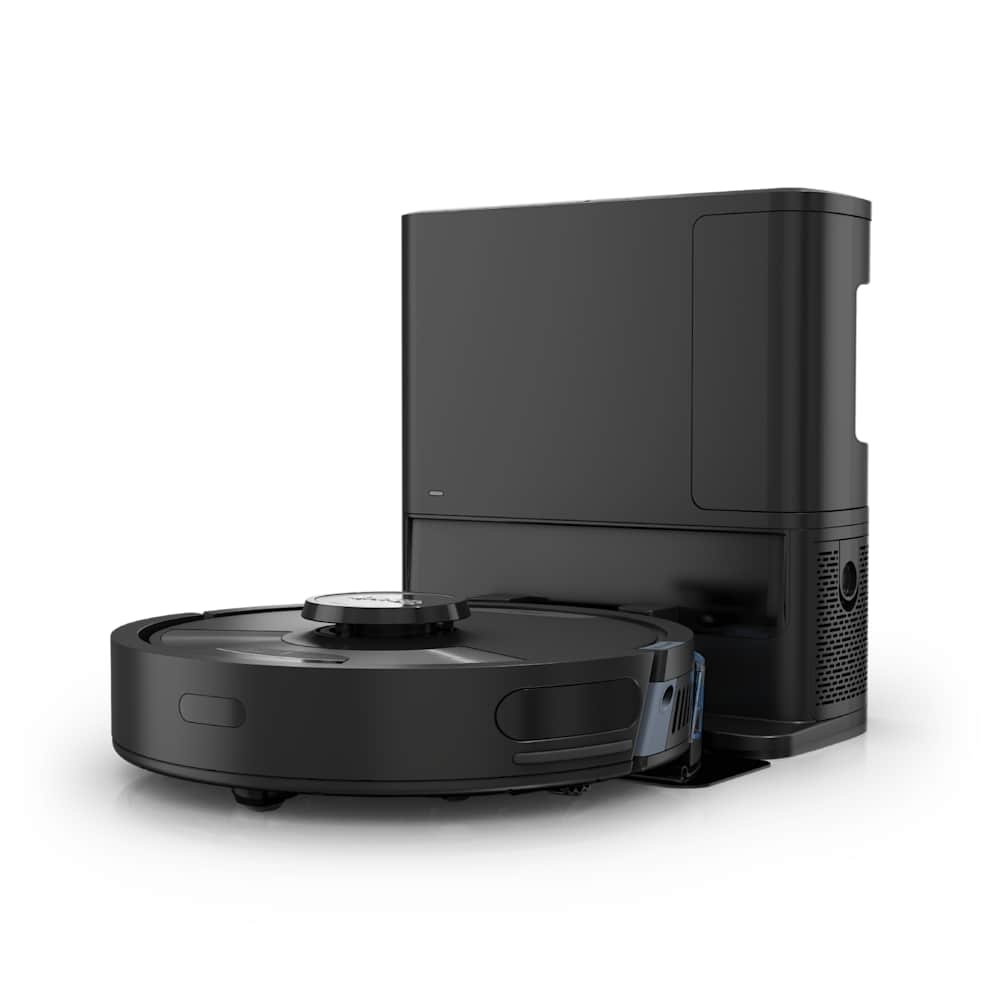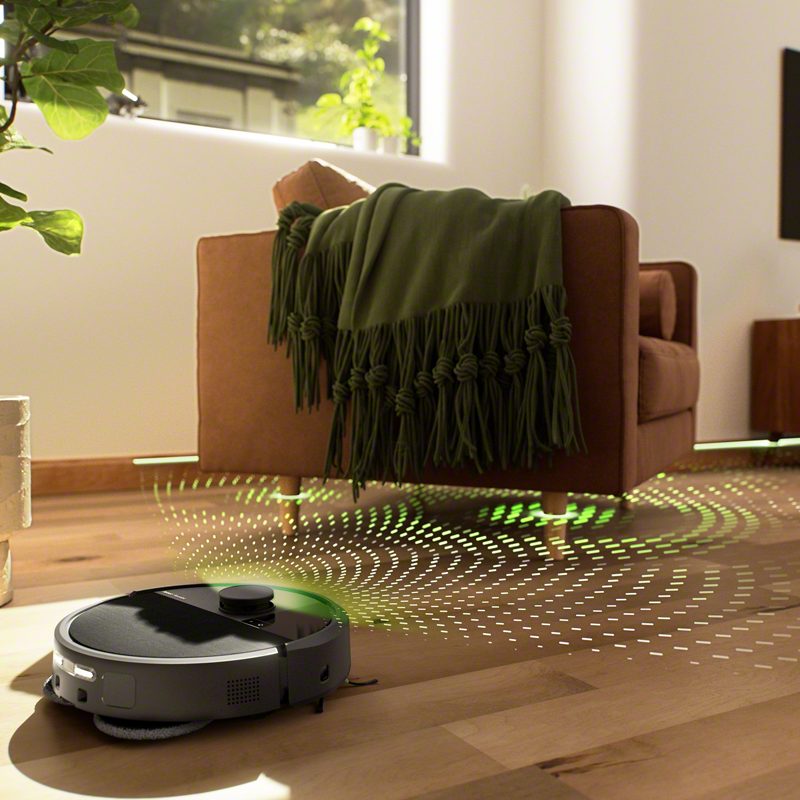
If your Roborock is spinning in tight circles instead of cleaning, it is almost always a sensor problem — not a broken robot. In nine cases out of ten, the fix is cleaning either the LiDAR turret on top, the bumper on the front, the wheels on the bottom, or the cliff sensors on the underside. All four take about five minutes total, and any one of them can cause the same symptom.
This guide walks them in order of how likely each one is, so you spend the least amount of time possible before the robot is navigating normally again.
30-Second Summary
- Most likely cause: A stuck or dirty LiDAR turret. Spin it with your finger — if it does not rotate freely, that is your fix.
- Second most likely: A stuck front bumper (throws Error 2) or a jammed wheel (Error 3).
- Weird but common: Cliff sensors mistaking a dark rug for the edge of a staircase — the robot keeps backing up, then spinning.
- Model-specific: S7 Max Ultra owners, check for condensation inside the LiDAR dome. It is a known hardware fault.
- Last resort: A soft reset and a firmware update. If none of the above works, it is a warranty claim.
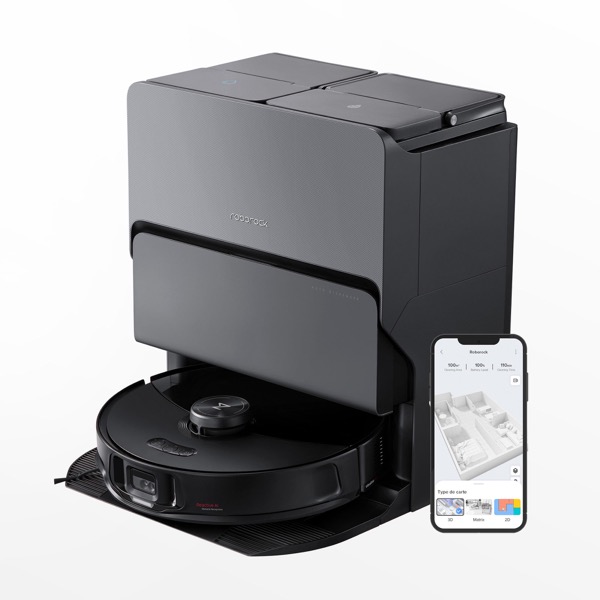
Before You Start: A 60-Second Diagnosis
Open the Roborock app and look for an error code — this alone tells you where to look.
| Error | What it means | Jump to |
|---|---|---|
| Error 1 | LiDAR turret is stuck or blocked | Fix #1 |
| Error 2 | Front bumper is stuck or pressed | Fix #2 |
| Error 3 | A wheel is suspended, jammed, or not spinning | Fix #3 |
| Error 4 | Cliff sensor is dirty or blocked | Fix #4 |
| (no error) | Software glitch, dark-carpet false trigger, or firmware bug | Fix #5 through #8 |
If there is no error code and the robot just spins randomly for a few minutes before continuing, it is probably a software issue — skip to Fix #6.
Fix #1: Free the LiDAR Turret (The Single Most Common Cause)
The raised puck on top of most Roborocks is the LiDAR turret. It spins constantly while the robot is cleaning, scanning the room with a laser to build a map. If it stops spinning — or spins unevenly — the robot loses its sense of direction and starts circling in place, often with Error 1: Check that the LiDAR turret turns freely in the app.
What to do:
- Power off the robot and flip it upright on a table.
- Push the top of the LiDAR turret sideways with one finger. It should spin smoothly with almost no resistance. If it feels gritty, sticky, or completely stuck, that is the problem.
- Look at the thin gap around the base of the turret. Hair, lint, and pet fur love to wedge in here. Use tweezers or a dental pick to pull out anything you see. A can of compressed air works too.
- Wipe the clear ring around the turret with a dry microfiber cloth. If there is a smudgy film, dampen the cloth with a drop of isopropyl alcohol.
- Spin the turret one more time — it should now rotate freely.
- Power the robot back on and start a clean.
If the turret still will not spin freely after cleaning, the internal LiDAR motor has failed. Below is how to confirm that before filing a warranty claim.
Quick test for a dead LiDAR motor: Place the robot on a hard floor in an open, well-lit room with no furniture within 3 feet. Start a clean. If it navigates normally there but fails in cluttered rooms, the LiDAR is partially working. If it spins in circles even in the empty room, the motor or sensor has failed and the unit needs a replacement.
S7 Max Ultra owners, read this: There is a known issue where condensation builds up inside the sealed LiDAR dome on the S7 Max Ultra, especially in humid environments. The condensation fogs the laser window from the inside where you cannot clean it. If you see a faint haze inside the dome, file a warranty claim — this is a hardware defect, not user-repairable.
Fix #2: Unstick the Front Bumper
The front of a Roborock has a spring-loaded bumper that detects walls and furniture. When the bumper is pressed, the robot thinks it has hit something and backs away. If the bumper is stuck in the "pressed" position — because of debris in the gap, a bent clip, or a piece of hair wedged behind it — the robot backs up endlessly and spins to find a way around an obstacle that is not there.
You will usually see Error 2: Clean and lightly tap the bumper in the app when this happens.
What to do:
- Flip the robot over and set it on a towel.
- Push the front bumper inward with your fingers and release. It should spring back immediately and sit flush with the body. If it moves sluggishly or stays depressed, something is jammed.
- Clap the bumper gently — several users on the Roborock forum have reported that literally tapping the bumper with a flat hand dislodges whatever is wedged in the gap.
- Look at the narrow seam between the bumper and the body from every angle with a flashlight. Pull out any visible hair, lint, or debris with tweezers.
- Use compressed air along the entire seam. This is the most reliable fix for hard-to-see clogs.
- Test the bumper by pressing and releasing it five times in a row. It should spring back cleanly every time.
Fix #3: Free the Drive Wheels and Clean the Encoders
The two large drive wheels on the bottom of the robot each have an optical encoder — a small sensor that counts how fast the wheel is turning. If one encoder is dirty or if one wheel is slightly slower than the other because of hair wrapped around the axle, the robot thinks it is driving straight while actually turning. Over a few seconds, this compounds into a perfect circle.
You will usually see Error 3: One of the wheels is suspended in the app, though a subtle encoder problem can cause circling with no error code at all.
What to do:
- Flip the robot over.
- Press each drive wheel down and release. It should extend on a spring and retract cleanly. If one wheel sticks in the extended position, dust is jamming the suspension — blow it out with compressed air.
- Spin each wheel by hand. Both should rotate with equal resistance. If one spins freely and the other grinds or feels heavy, hair is wrapped around the axle.
- To clear hair from the axle: remove any visible debris from the wheel well with tweezers. For deeper tangles, you may need to remove the wheel housing (two Phillips screws on most models) and pull hair from the shaft directly.
- Wipe the wheel treads with a damp cloth — dust buildup on the rubber can cause slip, which also looks like a circling problem.
- Check the small rectangular slot near each wheel for any loose debris that might be blocking the encoder.
A subtle sign this is your problem: the robot drives in lazy curves on hard floors but tight circles on carpet, because carpet amplifies the wheel speed mismatch.
Fix #4: Clean the Cliff Sensors (Especially If You Have Dark Rugs)
The small glass dots on the underside near the front of the robot are cliff sensors. They bounce infrared light off the floor to detect staircases and drop-offs. If any one of them is dirty or obscured, the robot thinks it is about to fall off an edge, backs up, and tries to find a new path. Do this in enough rapid succession and you get circling behavior.
You will sometimes see Error 4: Cliff sensor is dirty or blocked in the app — but not always, because a half-dirty sensor can still produce valid readings most of the time and just throw occasional false alarms.
What to do:
- Flip the robot over.
- Locate the 3 to 6 small black glass circles near the front and sides of the underside. These are the cliff sensors.
- Wipe each one with a dry microfiber cloth first. For stubborn grime, use a cotton swab with a drop of isopropyl alcohol.
- Inspect each sensor with a flashlight — the glass should be clear and clean, not foggy or scratched.
- Run a test clean on hard floor first (no rugs) to confirm the circling stops.
The dark rug trap: Cliff sensors work by measuring how much infrared light bounces back from the floor. Very dark surfaces — black rugs, dark brown hardwood, deep navy carpet — absorb most of the IR light, and some older Roborock models misread them as a missing floor. The robot then refuses to drive onto the rug, backs off, and spins trying to find another way. This is not a sensor fault, it is a known limitation of the IR cliff-sensing approach.
If you have a dark rug and your robot keeps circling at its edge:
- On newer Roborock models (S7 and later), the app has a setting called Carpet Avoidance or Dark Surface Mode — enable it and the robot will stop treating dark carpets as cliffs.
- On older models that do not have that setting, the workaround is to place light-colored tape over the cliff sensors (just the sensor, not the whole underside) or to physically block off the rug. Owners on the Roborock forum have reported both fixes working, though tape is a hack.
Fix #5: Remove Any Physical Obstacle
Sometimes the robot is not broken at all — it is genuinely stuck on something small. A phone charging cable, a child's toy, a loose edge of a lightweight rug, or the fringe of a doormat can all wrap around a wheel or push the bumper in a way that makes the robot circle endlessly.
What to do:
- Pick the robot up and look underneath.
- Check for any loose items wrapped around the wheels, brushes, or axles.
- Walk through the area the robot was cleaning and remove anything a 14-inch-wide disc could snag on — cables on the floor, loose rug corners, drawstrings from curtains, pet toys.
- For lightweight rugs that shift when the robot drives onto them, add anti-slip pads underneath, or use the Roborock app's No-Go Zones feature to mark that area off.
Fix #6: Soft Reset the Robot
Software can get confused, especially after a failed clean, a partial firmware update, or a power blip. A soft reset clears the running state and usually fixes unexplained circling where no hardware issue is visible.
What to do:
- Put the robot on its charging dock.
- Press and hold the power button for about 10 seconds until the robot powers down fully.
- Wait 5 seconds.
- Press the power button briefly to turn it back on.
- Wait for the robot to re-acquire its map (you will see it scanning the LiDAR) and then start a fresh clean.
If the circling was a one-off, a soft reset is usually the end of it. If it comes back on the next clean, the cause is hardware — go back to Fix #1 through #4.
Fix #7: Update the Firmware
Firmware bugs that cause navigation errors are more common than Roborock likes to admit. Several of them have been fixed in silent updates over the last two years, and running outdated firmware on an older S5 or S6 unit is a real source of unexplained circling.
What to do:
- Open the Roborock app.
- Tap your robot → tap the gear icon in the top right for settings.
- Scroll to Firmware Update (sometimes labeled About on older app versions).
- If an update is available, tap install and leave the robot on the dock until it finishes. Do not interrupt it — a broken firmware update is a much bigger problem than the circling you started with.
- After the update, start a fresh clean and see if the behavior returns.
Fix #8: Restart the App and Reconnect Wi-Fi
A corrupted app session or a dropped Wi-Fi connection can sometimes make the robot appear to behave erratically because it is losing sync with the map mid-clean. This is rarer than hardware causes, but it does happen, and it takes 30 seconds to rule out.
What to do:
- Force-close the Roborock app on your phone.
- Reopen it and confirm the robot shows as online.
- If it shows as offline or takes a long time to connect, put the robot back on the dock and restart your Wi-Fi router.
- Once the robot is confirmed online again, start a clean.
If your robot is chronically dropping off Wi-Fi, that is a separate problem — our Roborock not connecting to WiFi guide covers that in detail.
When to Give Up and File a Warranty Claim
If you have worked through all eight fixes and the robot is still circling, the problem is almost certainly a dead LiDAR motor, a failed wheel encoder, or a cracked sensor board. These are not user-repairable on any current Roborock model.
Before you file a claim, check the obvious:
- Is the robot still inside its warranty window? Roborock's standard warranty in the US is 1 year from the date of purchase. Some flagship models have had promotional extended warranty offers — check your receipt.
- Do you have the original purchase record? Roborock customer service will ask for it.
- Open the app, go to Support → Contact Us, and attach a short video of the robot circling. Do not try to describe it in text; a 10-second video ends the support back-and-forth immediately.
If the robot is out of warranty, weigh the cost of repair against a new unit. A replacement LiDAR module runs $40-80 and requires disassembly. For most owners past the 2-year mark, a new mid-range Roborock is the better spend.
Maintenance Schedule That Prevents Circling
Stay on this schedule and navigation problems rarely come back.
| Interval | What to do |
|---|---|
| Weekly | Wipe the LiDAR turret with a dry microfiber cloth. Check that it spins freely. |
| Weekly | Clean the cliff sensors with a microfiber cloth. |
| Weekly | Press the front bumper in and out five times — any stiffness means debris. |
| Monthly | Check drive wheels for hair around the axles. Spin each wheel by hand to confirm free rotation. |
| Monthly | Check the Roborock app for firmware updates. |
| Quarterly | Use compressed air on the LiDAR base gap, the bumper seam, and the wheel wells. |
Frequently Asked Questions
Why is my Roborock going in circles all of a sudden?
In the vast majority of cases, it is a sensor problem that has developed quietly over time — dust on the cliff sensors, hair wrapping around a wheel axle, or lint clogging the base of the LiDAR turret. These build up slowly until one day they cross the threshold where the robot can no longer navigate, and the change looks sudden even though the cause has been accumulating. Start with the LiDAR turret (Fix #1), then the bumper (Fix #2), then the wheels and cliff sensors. One of those four will solve the problem in 90% of cases.
How do I fix Error 1 on my Roborock?
Error 1 means the LiDAR turret is stuck, blocked, or not rotating. Flip the robot over, push the turret on top with your finger, and confirm it spins freely. If it does not, pull any visible hair or debris from the gap around its base using tweezers or compressed air. If it still will not spin after cleaning, the internal LiDAR motor has failed and the unit needs warranty replacement. If it spins fine manually but you still get Error 1 during a clean, the sensor window inside the dome may be dirty or fogged — on S7 Max Ultra models specifically, this is often condensation inside a sealed chamber, which is a known hardware fault.
Can a dirty sensor really make my Roborock spin in circles?
Yes, and it is one of the most counterintuitive failure modes. Cliff sensors in particular can cause circling without any obvious symptom: if one of the four sensors is half-dirty, it returns valid readings most of the time and occasional false "cliff detected" errors. The robot backs up, turns, tries again, backs up again, and ends up spinning in place. A 30-second wipe of the cliff sensors with a microfiber cloth fixes it.
Why does my Roborock spin in circles only on the dark rug?
Infrared cliff sensors work by bouncing IR light off the floor and measuring how much bounces back. Very dark surfaces absorb nearly all of the IR light, and some Roborock models misread that as a missing floor. The robot treats the rug as a drop-off and refuses to drive onto it. On S7 and later models, enable Carpet Avoidance or Dark Surface Mode in the app. On older models, the workaround is to mark the rug as a no-go zone, or to cover the cliff sensors with light-colored tape (a hack, but owners confirm it works).
Will a firmware update fix my Roborock going in circles?
Sometimes. Roborock has quietly patched several navigation bugs over the last two years, and running outdated firmware on older S5 or S6 models is a real source of unexplained circling. Update first (Fix #7), then try again. If the circling persists after an update and a soft reset, the problem is hardware, not software.
For related fixes, see our guides on Roborock not returning to dock, Roborock not picking up debris, and Roborock not connecting to WiFi. For a look at how we test navigation accuracy in our reviews, see how we test.