Your Roborock will not connect to WiFi? In 9 out of 10 cases, the problem is your router broadcasting on 5GHz — and every current Roborock model only supports 2.4GHz WiFi. The fix takes about 60 seconds.
If that is not it, this guide covers the six most common causes and step-by-step fixes, based on Roborock's official support documentation and real troubleshooting experiences from hundreds of users.
Quick Answer
- Most likely cause: Your router is on 5GHz. Roborock only supports 2.4GHz.
- Fastest fix: Create a separate 2.4GHz network on your router, then reconnect.
- If that fails: Work through Fix 2–6 below. Most users solve it within 10 minutes.
60-Second Quick Check
Before trying anything else, answer these three questions:
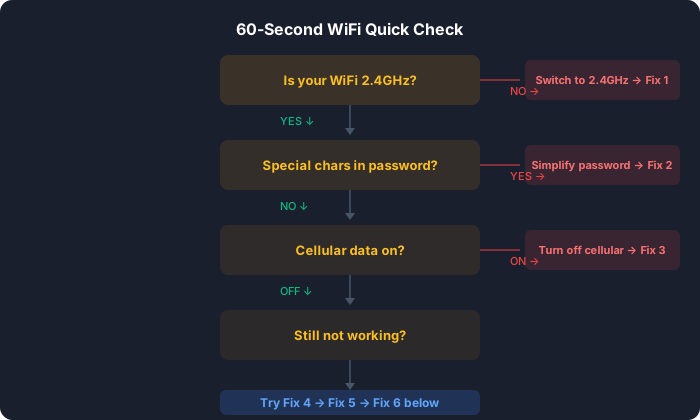
- Is your WiFi on 2.4GHz? — If you are not sure, or your router combines 2.4GHz and 5GHz under one network name, go to Fix 1.
- Does your WiFi password contain special characters like
!@#$%&? — Go to Fix 2. - Is cellular data turned on on your phone? — Go to Fix 3.
If you answered "yes, 2.4GHz," "no special characters," and "cellular is off" — skip to Fix 4.
Fix 1: Switch to a 2.4GHz WiFi Network
This fixes the problem for most users.
Every Roborock robot vacuum — including the S8 MaxV Ultra, Saros Z70, Q5 Pro, Qrevo Curv, and all other current models — connects only on the 2.4GHz band. Roborock does not support 5GHz WiFi on any model as of 2026.
Many modern routers broadcast 2.4GHz and 5GHz under a single network name (called "band steering" or "smart connect"). Your phone automatically picks 5GHz because it is faster — but your Roborock cannot see it.
How to fix it:
- Open your router's admin panel (usually
192.168.1.1or192.168.0.1in a browser) - Find the Wireless or WiFi settings
- Either disable band steering so 2.4GHz and 5GHz appear as separate networks, or create a dedicated 2.4GHz network with a distinct name like
HomeWiFi-2G - Connect your phone to the 2.4GHz network
- Open the Roborock app and start the setup process again
One user on the Roborock forum described the exact moment: "I had been fighting this for two hours. Turned off band steering, created a separate 2.4GHz network, connected in 30 seconds."
Pro tip: Keep your phone on the same 2.4GHz network during the entire setup process. If your phone auto-switches back to 5GHz mid-setup, the connection will fail.
Fix 2: Simplify Your WiFi Name and Password
Roborock's WiFi module struggles with special characters in network names and passwords. This is a known issue confirmed by both Roborock's official support and dozens of user reports.
Characters that cause problems:
- Symbols:
! @ # $ % ^ & * ( ) " ' < > - Non-Latin characters (Chinese, Japanese, emoji)
- Spaces at the beginning or end of the network name
How to fix it:
- Log into your router admin panel
- Change your WiFi name to simple English letters and numbers only — for example,
HomeWiFi2G - Change your password to letters and numbers only — no symbols, no spaces
- Save settings and wait for the router to restart
- Reconnect your phone, then try the Roborock setup again
Chinese users on Zhihu independently confirmed this: WiFi names with Chinese characters or passwords mixing uppercase and lowercase letters frequently cause connection failures. A simple all-lowercase, letters-and-numbers password resolves it.
You can change your password back to something more complex after the Roborock is connected — it will remember the network.
Fix 3: Turn Off Cellular Data During Setup
This is the fix that nobody expects to work, but it does. Multiple users on Reddit and Chinese tech forums confirmed it independently.
When your phone has cellular data (4G/5G) enabled during setup, it can interfere with the local connection between your phone and the Roborock. Your phone may route traffic through cellular instead of the local WiFi, causing the setup handshake to fail.
How to fix it:
- iPhone: Open Control Center → tap the cellular icon to turn it off (or go to Settings → Cellular → turn off Cellular Data)
- Android: Pull down the notification shade → tap Mobile Data to turn it off
Then restart the Roborock setup process in the app. After the robot connects successfully, you can turn cellular data back on.
One iOS user reported: "I had tried everything for three days. Turned off cellular data, connected on the first try. I felt stupid."
Fix 4: Change Router Security to WPA2
Newer routers ship with WPA3 security enabled by default. Many Roborock models — especially older ones like the S5, S6, and S7 series — only support WPA2.
If your router is set to "WPA3 only," your Roborock literally cannot authenticate with the network. It will fail silently during setup.
How to fix it:
- Open your router admin panel
- Go to Security or Wireless Security settings
- Change the security mode from "WPA3" to "WPA2/WPA3" (mixed mode) or "WPA2"
- Save and restart the router
- Try the Roborock setup again
Note: WPA2 is still secure for home use. Mixed mode (WPA2/WPA3) lets all your devices connect — old and new — without sacrificing security on devices that support WPA3.
Also check that your router is not using WEP encryption — this is an ancient security protocol that Roborock explicitly does not support. If you see WEP anywhere in your router settings, switch to WPA2 immediately.
Fix 5: Reset WiFi on Your Roborock
If you have tried Fixes 1–4 and the robot still will not connect, the problem may be cached WiFi data on the robot itself. A WiFi reset clears the stored network credentials and lets you start fresh.
⚠️ Important: This is a WiFi reset, not a factory reset. Your maps, cleaning history, and settings are preserved. Do not factory reset your robot just for WiFi issues — that erases everything.
How to reset WiFi (most models — S7, S8, Q5, Q7, Q Revo, Saros):
- Make sure the robot is powered on and on the charging dock
- Press and hold the dock button and spot clean button simultaneously
- Hold for about 5 seconds until you hear the voice prompt: "Resetting WiFi"
- The WiFi indicator light will flash slowly — the robot is ready for a new connection
- Open the Roborock app, tap "Add Device," and go through the setup process
Alternative method (if the button combo does not work): Some models have a small reset pinhole near the WiFi LED. Use a SIM ejector tool or paperclip to press it once. This method was recommended by experienced users on Chinese tech forums as more reliable than the button combination on certain models.
After the WiFi reset, the robot will broadcast its own temporary WiFi network for pairing. Make sure your phone connects to it when the app prompts you.
Fix 6: Check Router Settings
If nothing above worked, the issue is likely a router-level restriction blocking your Roborock from connecting. These are less common but harder to diagnose.
Check these settings in your router admin panel:
| Setting | Problem | Fix |
|---|---|---|
| AP Isolation | Prevents devices from seeing each other on the network | Disable it |
| Client Isolation | Same as AP isolation, different name | Disable it |
| MAC Address Filtering | Router only allows pre-approved devices | Add the Roborock's MAC address or disable filtering during setup |
| Device Limit | Router has a maximum connected device count | Remove unused devices or increase the limit |
| DNS Settings | Router DNS cannot resolve Roborock's servers | Change DNS to 8.8.8.8 (Google) or 1.1.1.1 (Cloudflare) |
How to find your Roborock's MAC address: It is printed on a label on the bottom of the robot, or on the box it came in. It looks like XX:XX:XX:XX:XX:XX.
If you are using a mesh WiFi system (like Google Nest WiFi, eero, or Orbi), try setting up the Roborock near the main router unit — not a satellite node. Some mesh systems handle the 2.4GHz handoff poorly during initial setup.
Still Not Working?
If you have tried all six fixes and your Roborock still will not connect:
- Try a different phone — Some users resolved the issue by using an Android phone instead of an iPhone (or vice versa) for the initial setup
- Try a mobile hotspot — Set up a 2.4GHz hotspot from another phone, connect the Roborock to it, then switch to your home WiFi later through the app
- Contact Roborock Support — support.roborock.com or email support@roborock.com. Have your model number, firmware version, and router brand ready
If the WiFi indicator light on your Roborock does not flash at all during reset, the WiFi module itself may be defective. This is rare but does happen — contact support for a warranty claim.
Looking for a Roborock to buy? Check out our Roborock S8 MaxV Ultra review for the top-of-the-line option, or the Roborock Q5 Pro review for a budget-friendly pick. We also have a full robot vacuum buying guide if you are still deciding.
Frequently Asked Questions
Does any Roborock support 5GHz WiFi?
No. As of 2026, every Roborock model only supports 2.4GHz WiFi — including the newest Saros Z70 and Qrevo Curv. This is the single most common reason for connection failures.
Will resetting WiFi delete my maps and settings?
No. A WiFi reset only clears the stored network credentials. Your maps, room labels, cleaning schedules, and no-go zones are all preserved. A factory reset is different — that erases everything.
Why does my Roborock keep disconnecting from WiFi?
Frequent disconnections usually mean weak signal at the dock location. Move the dock closer to the router, or add a WiFi extender nearby. Also check that your router firmware is up to date — some router bugs cause periodic 2.4GHz drops.
Can I use my Roborock without WiFi?
Yes. You can start cleaning by pressing the button on top of the robot. But you lose all smart features — no app control, no scheduling, no room-specific cleaning, no maps, and no firmware updates. WiFi is required for anything beyond basic start/stop.
My Roborock connected before but now shows offline. What happened?
Your router likely changed something — a firmware update, a password change, or band steering being re-enabled. Go through Fix 1 first. If the network has not changed, try Fix 5 (WiFi reset) to clear the cached connection.