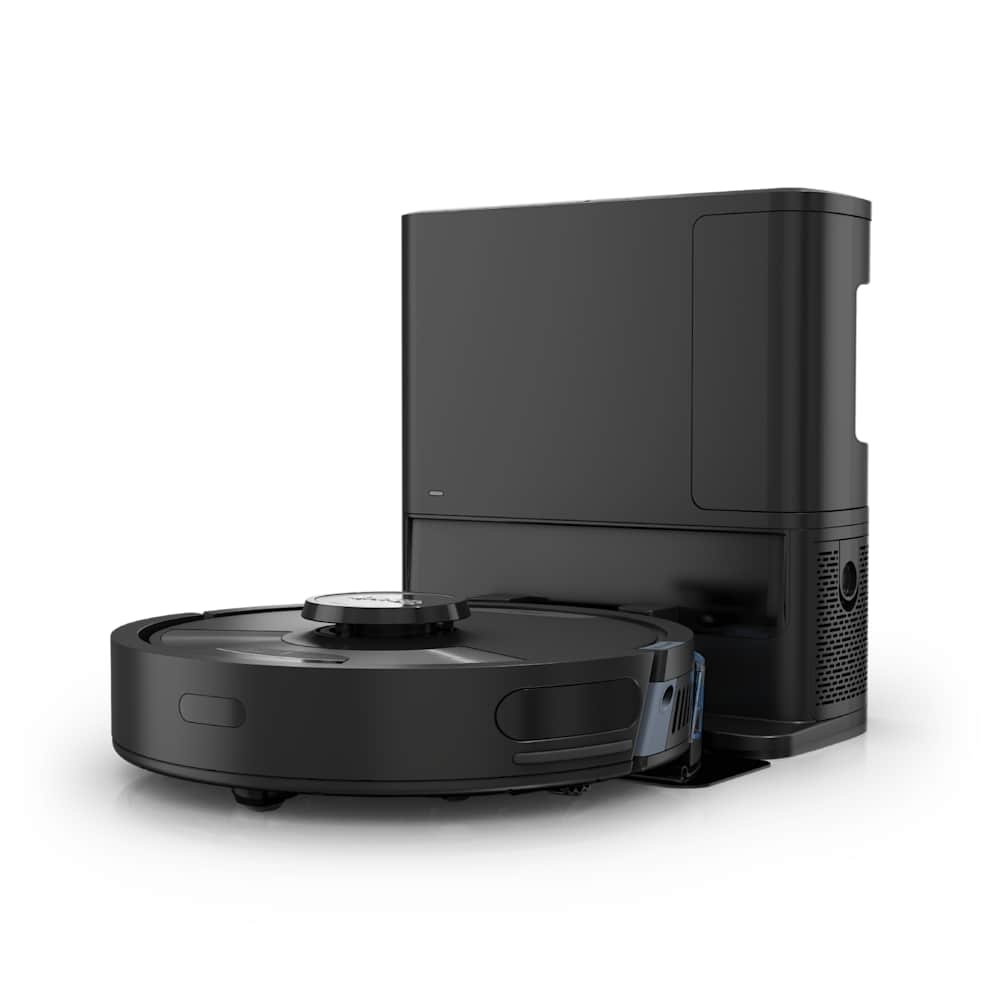
If your Dreame robot vacuum won't connect to WiFi, the cause is almost always the same — your robot is trying to join a 5GHz network it can't see. Dreame robots only support 2.4GHz, and modern routers hide that detail behind a single "smart" SSID. Below are the nine fixes that solve every Dreame WiFi problem we've seen, ordered by how often they work.
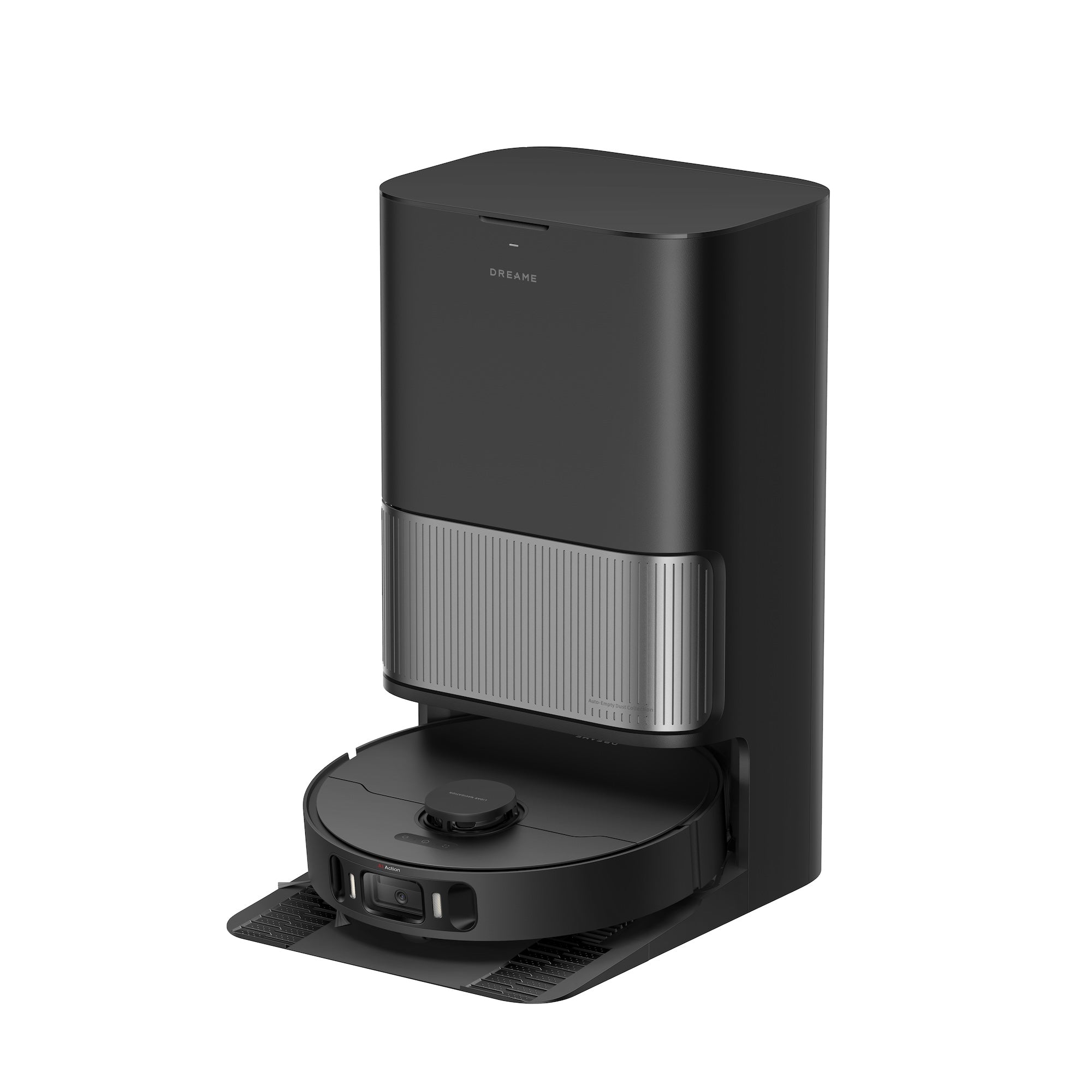
30-Second Summary
- Most common cause: Your router's "band steering" is sending the robot to 5GHz, which Dreame doesn't support
- First thing to try: Temporarily split your 2.4GHz network into its own SSID, then connect
- Reset combo: Press Clean + Dock together for 3 seconds — voice says "Wi-Fi reset. Waiting for network configuration"
- If it keeps dropping after working fine: Set a static IP for the robot in your router
- Last resort: Factory reset (you will lose maps)
Why Your Dreame Won't Connect to WiFi
Five issues account for almost every "won't connect" complaint we see in Dreame's own support forum and on Reddit:
- 5GHz band steering — The robot keeps trying to join the 5GHz half of your dual-band SSID and silently fails. This is by far the #1 cause on modern mesh routers (eero, Google Nest, Asus AiMesh).
- WPA3-only security — Newer routers default to WPA3, which Dreame robots don't speak. Mixed WPA2/WPA3 works; pure WPA3 doesn't.
- Phone permissions — The Dreamehome app needs Bluetooth and Location turned on during setup, and a VPN or Apple Private Relay running in the background will block device discovery.
- Special characters in SSID or password — Apostrophes, emojis, or spaces in your network name will fail silently. The Dreame app accepts them at typing, then refuses to pair.
- Robot lost its DHCP lease — A common cause for vacuums that worked for weeks then suddenly show "offline" after a router reboot or ISP outage.
The fixes below address each of these. Work through them in order — most users are back online by Fix #2 or #3.
Fix #1: Force the Robot Onto a Dedicated 2.4GHz Network
This solves the single most common Dreame WiFi failure. Dreame robot vacuums only support 2.4GHz — they cannot see or connect to 5GHz or 6GHz, regardless of model. If your router uses one merged SSID for both bands (the default on most modern routers), the robot will attempt to connect to 5GHz and silently fail.
What to do:
- Log into your router's admin page (usually
192.168.1.1or192.168.0.1). - Find Wireless Settings → look for "Smart Connect," "Band Steering," or "Dual-Band SSID."
- Disable the merged SSID and create two separate networks — for example,
MyHome-2GandMyHome-5G. - On your phone, manually connect to the 2.4GHz network before opening the Dreamehome app.
- Try the setup again.
Mesh router users (eero, Google Nest WiFi, Orbi): These routers don't let you split bands easily. The workaround is to put your phone on a 2.4GHz hotspot — or temporarily disable the 5GHz radio for 5 minutes during setup. Once the robot is paired, you can re-enable 5GHz and the robot will keep its 2.4GHz connection.
"I spent three hours fighting with this until I realized my eero was hiding the 2.4GHz band. Used my old iPhone as a 2.4GHz hotspot, paired in 30 seconds." — common pattern in the Dreame forum's WiFi thread.
Fix #2: Reset the Robot's WiFi Memory
If the robot was working before and now shows "offline" — or if it keeps trying to connect to your old network after you upgraded your router — its stored WiFi credentials are stale. You need to clear them with the reset combo.
The reset procedure:
- Make sure the robot is powered on and off the dock (some models won't accept the reset on the dock).
- Press and hold Clean (▶) + Dock (⌂) simultaneously for about 3 seconds.
- You'll hear a voice prompt: "Wi-Fi reset. Waiting for network configuration."
- The status light starts blinking (slow blue or white pulse, depending on model).
- Open the Dreamehome app and tap + Add Device → choose your robot model → follow the in-app pairing flow.
If your model doesn't have visible Clean/Dock buttons: Older Dreame models (D9, F9, Z10 Pro) use a single power button. Hold it for 5 seconds with the robot off-dock; the voice prompt is the same.
This step preserves your maps and schedules — they're stored in your Dreame cloud account, not on the robot.
Fix #3: Fix Your Phone Before You Touch the Router
About 1 in 4 setup failures we see are pure phone-side issues that have nothing to do with the robot. Run through this list before changing any router settings:
- Turn Bluetooth ON. Dreamehome uses Bluetooth Low Energy to discover the robot during initial pairing. Off = robot invisible.
- Turn Location Services ON for the Dreamehome app specifically (iOS: Settings → Privacy → Location → Dreamehome → While Using). This is an Android/iOS requirement for any app that scans for nearby WiFi networks; Dreame can't bypass it.
- Turn off any VPN. ProtonVPN, NordVPN, Mullvad — all of them block local device discovery.
- Turn off Apple Private Relay (iOS only). Settings → Apple ID → iCloud → Private Relay → Off. This is a sneaky one — the robot pairs fine, then "loses" connection 30 seconds later.
- Disable carrier auto-VPN if you have T-Mobile or Verizon network protection apps.
After changing these, force-quit the Dreamehome app and reopen it. iOS in particular caches old permission states.
Fix #4: Simplify Your SSID and Password
The Dreame app and the robot's onboard chip handle character encoding differently. Anything outside basic ASCII can break the handshake.
What to avoid in your WiFi name (SSID):
- Apostrophes (
Bob's WiFi) — top cause of pairing fails - Emojis (🏠 WiFi)
- Spaces are usually fine, but underscores are safer
- Hidden SSIDs (broadcast disabled) — robot can't see them at all
What to avoid in your password:
- Backticks, percent signs, and curly braces
- Passwords longer than 32 characters
The safe formula: SSID like MyHome2G (letters and numbers only, no spaces), password 8–20 characters using letters, numbers, and basic punctuation (!, @, #, -).
If renaming your home network is too disruptive, create a guest 2.4GHz network just for IoT devices with a clean SSID. Most modern routers support this in 30 seconds.
Fix #5: Move the Robot Closer to the Router
Dreame's setup process needs stronger signal than normal operation. Even if the robot connects fine in your bedroom during cleaning, the initial pairing handshake demands a clean signal — ideally 2 meters / 6 feet from the router with line of sight.
For setup only:
- Carry the robot to the same room as the router
- Do the entire pairing flow there
- After it's paired, move it back to its dock — the saved connection will hold up at lower signal
For everyday connectivity: If the robot's home dock is more than 30 feet from the router with two walls in between, expect intermittent dropouts. A cheap mesh node or a 2.4GHz extender placed near the dock fixes this permanently.
Fix #6: Check Router Settings That Block IoT Devices
Some router features that protect your network also kill robot vacuums. If you've tried Fixes 1–5 and the app still can't find the robot, check these in your router admin panel:
| Setting | Where to find it | Action |
|---|---|---|
| MAC address filtering | Wireless → Access Control | Disable, or whitelist the robot's MAC (printed under the dustbin) |
| AP / Client isolation | Wireless → Advanced | Disable — this blocks devices on the same WiFi from seeing each other |
| IoT segregation | Some Asus, Ubiquiti, Synology routers | Move the robot to your main LAN, not the isolated IoT VLAN, during setup |
| Bandwidth control / QoS | Traffic Manager | Pause during setup |
| Firewall: block unknown devices | Eero Plus, Google Home filter | Approve the new device when prompted |
After changing any router setting, reboot the router, then retry pairing.
Fix #7: Use the Manual Hotspot Method (When the App Can't Find the Robot)
If the app gets stuck on "Searching for device" for more than 60 seconds, the automatic Bluetooth discovery has failed. Dreame's official fallback is to manually join the robot's own hotspot.
Steps:
- Reset the robot's WiFi (Fix #2 — Clean + Dock for 3 seconds).
- Open your phone's Settings → WiFi (not the Dreamehome app).
- Look for a network named
dreame-vacuum-XXXXwhere XXXX is a 4-character code. - Tap to join. Your phone will say "no internet" — that's expected. The robot voice will say "Robot at phone connected, please return to the APP to wait for the results."
- Switch back to the Dreamehome app. It should now detect the robot and finish setup automatically.
This bypasses Bluetooth entirely and works on phones with iffy BLE radios (older Pixels and budget Androids especially).
Fix #8: Stop "Offline After a Month" Dropouts (Static IP Trick)
A common pattern: the robot pairs fine, works for 2–4 weeks, then suddenly shows "offline" in the app even though it still cleans on schedule. A user with a Dreame L40 Ultra on the Dreame forum reported exactly this — automatic cleaning kept running, but the app couldn't see the robot anymore. The cause is almost always a stale DHCP lease: the router rebooted, the robot got a new IP, but Dreame's cloud is still trying to reach the old one.
The permanent fix — assign the robot a static IP:
- Find the robot's MAC address (under the dustbin, or in the Dreamehome app → Robot Info).
- Open your router admin → DHCP Reservations or Static IP Assignments.
- Reserve an IP outside your dynamic range (e.g.,
192.168.1.50) for that MAC. - Reboot the router. The robot will now get the same IP every time.
After this, the offline drops stop completely. This also fixes the related problem where the robot disappears from the app after an ISP outage.
Fix #9: Factory Reset (Last Resort)
If nothing above worked, a factory reset clears everything — saved networks, maps, schedules, account binding — and gives you a clean slate. You will lose your room maps; only do this if Fixes 1–8 all failed.
Procedure varies by model, but the standard sequence is:
- With the robot off the dock and powered on, hold the Power + Dock buttons together for 5 seconds.
- Voice prompt: "Restoring factory settings" or "Resetting".
- The robot will reboot. The status light pulses to indicate it's back in pairing mode.
- Re-pair through Dreamehome from scratch.
For specific button combinations on your model, check Dreame's official reset guide. Roborock and Shark owners with similar problems can check our Roborock WiFi fix and other troubleshooting guides — the underlying causes overlap.
When to Contact Dreame Support
If you've worked through all nine fixes and the robot still won't pair, the issue is likely hardware — a failed WiFi module or a corrupted firmware partition. Contact Dreame support with:
- Your robot's SN code (under the dustbin, 14–16 digits)
- Your Dreamehome account email
- A video of the pairing process showing the failure
- Your router make and model
Dreame's average response time is 1–2 business days. Devices under warranty (typically 1 year) usually get a free WiFi module replacement; out-of-warranty repairs run roughly $40–$80.
Frequently Asked Questions
Why won't my Dreame connect even though my WiFi works fine?
Almost always because Dreame supports only 2.4GHz and your router is sending it to 5GHz. Modern routers merge both bands under one SSID, so the robot tries 5GHz first and silently fails. Fix #1 (split the bands or use a 2.4GHz-only hotspot during setup) solves this in over 70% of cases we see.
How do I know if my router has 2.4GHz?
Every consumer router from the past 10 years broadcasts 2.4GHz — the question is whether it's exposed as a separate network. Log into your router admin panel and look for "Wireless 2.4GHz" or "Smart Connect" settings. If you see only one SSID, band steering is on. Disabling it temporarily for setup is the fastest fix.
What does the Clean + Dock 3-second reset do?
It clears the robot's stored WiFi credentials and puts it back into pairing mode without erasing your maps or schedules. You'll hear "Wi-Fi reset. Waiting for network configuration." This is the right reset to use when changing routers or networks — it's non-destructive. Use the full factory reset (Fix #9) only if this doesn't work.
Will resetting WiFi delete my saved maps?
No. The Clean + Dock reset only clears WiFi credentials. Your maps, schedules, no-go zones, and cleaning history are stored in your Dreame cloud account and re-sync once you reconnect. The full factory reset (Fix #9) does erase maps — that's why it's the last resort.
Why does my Dreame keep going offline even after it's connected?
Three causes, in order of likelihood: (1) weak signal at the dock — move the dock or add a 2.4GHz extender; (2) DHCP lease expiring — assign a static IP per Fix #8; (3) router firmware bug — reboot the router and update its firmware. If you've ruled out all three and it still drops daily, contact Dreame support to check the WiFi module. Other brand owners with similar drop-out issues can compare notes with our eufy WiFi fix — the symptoms are nearly identical.
Still stuck? If your robot won't charge in addition to WiFi issues, the dock might not be powered correctly — check our Dreame not charging guide for the related fix. For a step-by-step on how we test connectivity issues, see our testing methodology.