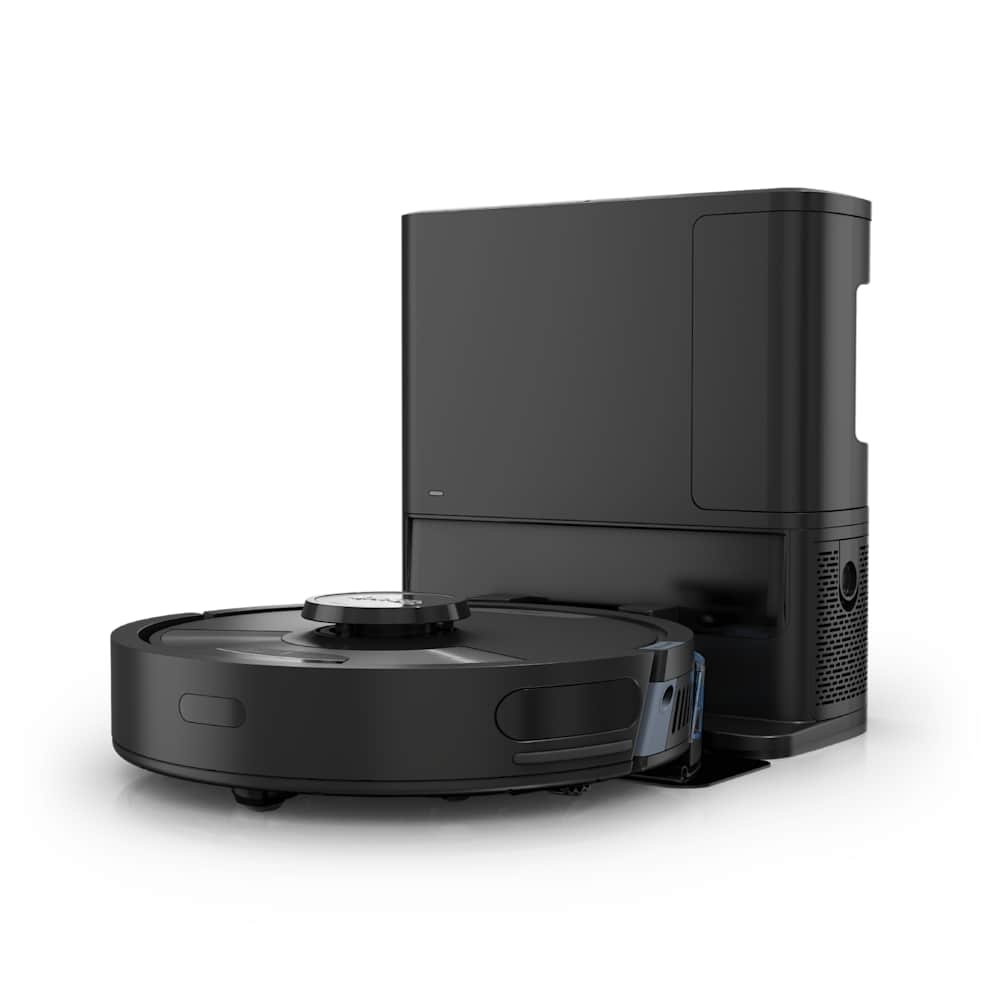
If your eufy robot vacuum stalls on the last step of setup or refuses to pair after a router change, the cause is almost always one of three things: the phone is on a 5 GHz signal, the eufy Clean app is missing a permission, or the router is silently filtering 2.4 GHz handoffs. The fixes are quick — but only if you do them in the right order.
This guide walks through the eight fixes that solve roughly 95% of eufy WiFi failures, based on the official eufy support documentation and patterns we see in user reports across L-series, X-series, S-series, and the older RoboVac Bounce/G lineup.
30-Second Summary
- Most common cause: Phone connected to a 5 GHz network during setup (eufy needs 2.4 GHz)
- Second most common: Missing Bluetooth, Local Network, or Precise Location permission for the eufy Clean app
- Quick test: Tether the vacuum to your phone's hotspot — if that works, the problem is your router, not the robot
- Last resort: Hard-reset the WiFi module using your model's specific button combo, then retry
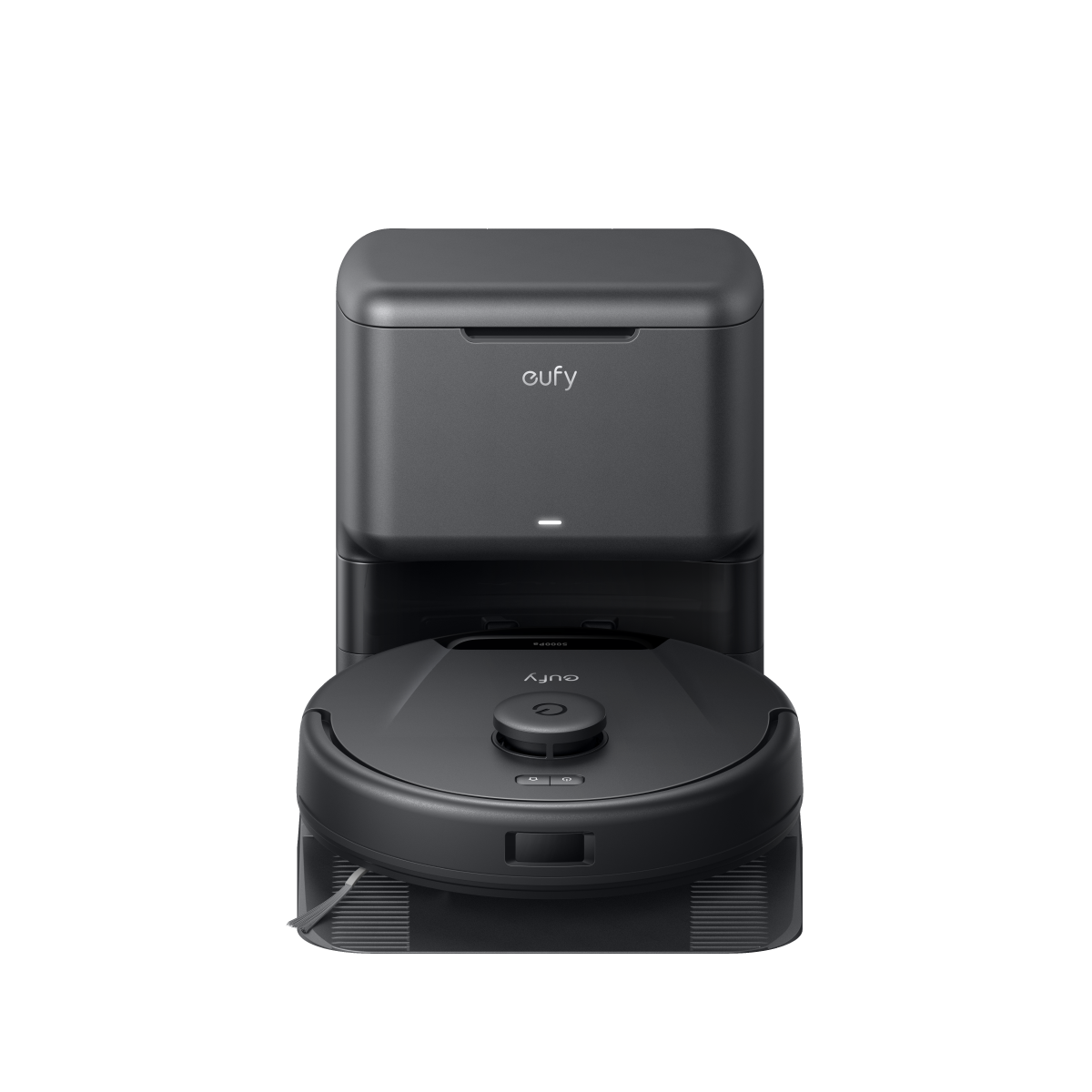
A 60-Second Diagnostic Before You Start
Before you start changing settings, run this one test — it tells you whether the problem is the robot or your network in under a minute.
- Turn on your phone's mobile hotspot (set the band to 2.4 GHz if your phone offers a choice).
- Connect a second phone or tablet to that hotspot, install the eufy Clean app on it, and try to add the robot from there.
- If pairing succeeds → your router is the problem. Skip ahead to fixes 5–7.
- If it still fails → the robot or app permissions are the problem. Start with fixes 1–3.
This single test saves you from chasing the wrong fix for an hour.
Fix 1: Connect Your Phone to a 2.4 GHz Network First
This is the single most common cause. Every eufy RoboVac except the L60 talks only to 2.4 GHz WiFi — the 5 GHz band is invisible to it. If your phone is on the 5 GHz signal during setup, the app cannot hand the credentials over to the robot, and you'll see a "failed to connect" error on the very last step.
What to do:
- On your phone, open WiFi settings and look for a network whose name ends in
-2G,-2.4, or shows a 2.4 GHz tag. If your router uses a single combined SSID (Google Nest WiFi, eero, and most mesh systems do this), see Fix 6 — you'll need to work around it. - Connect your phone to that 2.4 GHz network.
- Now open the eufy Clean app and run setup again.
Quick trick: If you can't tell which band your phone is on, turn on Airplane Mode, then turn WiFi back on (leave cellular off). This forces a clean reconnect and prevents your phone from quietly drifting back to 5 GHz mid-setup.
The eufy L60 is the one exception in the lineup — it works on both 2.4 and 5 GHz. If you have a different model and you're not sure, assume 2.4 GHz only.
Fix 2: Grant the eufy Clean App Three Permissions
The eufy Clean app needs three permissions to complete the WiFi handoff. Missing any one of them produces the same generic "unable to connect" error, which is why so many users get stuck here.
Open your phone's Settings → Apps → eufy Clean (Android) or Settings → eufy Clean (iOS) and check that all three are turned on:
| Permission | What it does | Where it fails without it |
|---|---|---|
| Precise Location | Lets the app scan nearby WiFi networks | App can't see your 2.4 GHz SSID |
| Local Network (iOS) | Lets the app talk to the robot on your LAN | Last-step "connection failed" |
| Bluetooth | Used during initial discovery on most newer models | Robot never appears in setup |
After enabling them, fully close and reopen the eufy Clean app — Android in particular caches old permission states, and the change won't take effect until the app restarts.
Fix 3: Reset the WiFi on the Robot Itself
If the app sees the robot but pairing fails on the last step, clear the robot's stored WiFi credentials and start fresh. The button combo is different on every series, so use the table below — pressing the wrong combo just triggers a normal clean cycle.
| Model series | WiFi reset combo | Hold for | Confirmation |
|---|---|---|---|
| Bounce series (15C, 25C, 30C, 35C, MAX variants) | Single button on top | 10 seconds | Beep + slow blue WiFi flash |
| G series (G10–G40 Hybrid, G32 Pro) | Single button on top | 10 seconds | Voice prompt + slow blue flash |
| L70 Hybrid | Both top buttons together | 3 seconds | Voice prompt + slow blue flash |
| L50 / L60 | Start/Pause + Recharge | 3 seconds | White lights flash rapidly |
| LR20 / LR30 / L35 | Start/Pause + Recharge | 5 seconds | Voice prompt |
| X8 / X8 Hybrid | Both top buttons together | 5 seconds | Voice prompt + slow blue flash |
| X9 Pro | Spot Cleaning + Recharge | 3 seconds | Voice alert + slow blue flash |
| X10 Pro Omni | Spot Cleaning + Recharge | 3 seconds | Voice alert |
| S1 Pro Omni | Reset button (under the cover) | 5 seconds | WiFi LED blinks + beep |
After the reset, the WiFi indicator should slowly pulse blue — that's the robot saying "ready to pair." Open the eufy Clean app, tap the + button, choose Add Device, and run setup from the start.
Important: A WiFi reset is not the same as a factory reset. Your map and schedule survive. If you want to wipe everything, hold the same combo for 10+ seconds — but don't do this unless you're switching homes or selling the robot.
Fix 4: The "Last-Step Failed to Connect" Trick
This one is straight from eufy's own support docs and works surprisingly often. If you keep hitting "unable to connect" on the final step of pairing, the robot's network state has gotten stuck — the fix is a forced cold restart.
- Force-close the eufy Clean app on your phone (don't just background it — actually swipe it away).
- Flip the red main power switch on the bottom of the RoboVac to OFF. Wait at least 10 seconds.
- Flip the switch back to ON. The robot will boot and play its startup chime.
- Reopen the eufy Clean app and start the pairing flow again.
The reason this works: when pairing fails partway through, the robot can be left in a half-paired state where it still thinks it has credentials but can't actually use them. Cutting power clears that state cleanly. Just rebooting from the app, or just restarting the dock, is not enough.
Fix 5: Check Your Router's Security Settings
If the diagnostic test in the intro told you the router is the problem, you're looking at one of four common settings that block IoT devices.
WPA3-only encryption. eufy RoboVacs do not support WPA3. If your router is set to WPA3 only, the robot will see the network but never connect. Log in to your router's admin page and switch to WPA2-PSK (AES) or the mixed WPA2/WPA3 mode. Mixed mode is fine — the robot will pick WPA2 automatically.
Hidden SSID. A hidden network blocks the eufy Clean app from finding the SSID during setup. Temporarily un-hide it, complete setup, then re-hide if you want — the robot remembers the network either way.
Special characters in SSID or password. Some firmware versions choke on emoji, spaces, or symbols like &, #, ', or ". If you see "incorrect password" but you're 100% sure it's right, change the password to letters and numbers only and try again.
AP isolation / client isolation. This setting blocks devices on the same WiFi from talking to each other — which means your phone can't reach the robot during setup. Disable it for the duration of pairing.
Also worth checking: if your 2.4 GHz channel width is set to 40 MHz, drop it to 20 MHz. Wider channels cause more handshake failures on older IoT chips, which is what's inside most eufy models.
Fix 6: Mesh Networks and Combined-SSID Routers
If you have Google Nest WiFi, eero, Orbi, or another mesh system that uses a single SSID for both bands, you cannot disable 5 GHz directly — the router decides which band each device gets. This is the single biggest reason setup fails on otherwise "perfect" home networks.
There are three workarounds, in order of ease:
- Use your phone's hotspot to complete pairing. Set the hotspot SSID to anything 2.4 GHz, complete setup on the hotspot, then in the eufy Clean app go to Settings → Wi-Fi Settings and switch the robot to your real home network. The robot now has one foot in the door and the second handoff usually works even on 5 GHz networks.
- Create a separate guest 2.4 GHz network in your router's admin panel. Most modern routers support this even when the main SSID is combined. Pair the robot on the guest network, then leave it there.
- For Google Nest WiFi specifically: open the Google Home app, go to your WiFi → Devices → and Pause all 5 GHz-only devices for the duration of setup. This nudges the network's smart band-steering toward 2.4 GHz long enough to pair.
Fix 7: Move Closer to the Router (and Off the Dock)
A surprising number of failed setups come down to signal strength. The 2.4 GHz band has decent range in theory, but eufy robots have small internal antennas, and a thick wall or a metal appliance between the robot and the router can drop the signal below what the pairing handshake needs.
Two quick adjustments:
- Pick the robot up off its dock and carry it within 10 feet of the router for setup. The dock itself can shield the antenna depending on placement.
- Bring your phone too. The eufy Clean app has to talk to both the robot and the router during pairing, so all three devices should be in roughly the same room.
Once setup completes, you can put the dock back wherever you want — the robot only needs the strong signal during the initial pairing.
Fix 8: Check for App and Firmware Updates
The eufy Clean app has been rewritten twice since 2024, and old versions sometimes can't pair newer 2025–2026 models. Before you contact support:
- Open the App Store or Google Play, search "eufy Clean," and confirm you're on the latest version. If your phone is older, check whether your OS still meets the app's minimum requirement (iOS 14+, Android 8+).
- If you've successfully paired before but recently lost connection, the robot's firmware may have updated and bricked the connection. Hold the WiFi reset combo for your model (Fix 3) and re-pair from scratch.
If you're running into problems with charging or other reliability issues alongside WiFi trouble, see our companion guide on eufy robot vacuum not charging — the two issues sometimes share a root cause (a damaged main board or a failed power cycle).
When to Contact eufy Support
If you've worked through all eight fixes and the robot still won't pair, it's time to escalate. Have this information ready:
- The model number (printed on a sticker under the dustbin, e.g.,
T2351for the X10 Pro Omni) - The email linked to your eufy Clean account
- A 30-second video of the setup attempt, captured up to the failure screen
- Your router make and model, plus whether it's combined-SSID or split
eufy's US support line is +1 (800) 994-3056, and in our experience email tickets get a response within 24 hours. If your robot is under warranty and a hardware fault is confirmed, eufy will cross-ship a replacement — see our eufy replacement parts guide for what's covered and what isn't.
Frequently Asked Questions
Why does my eufy robot vacuum keep disconnecting from WiFi after a power outage?
Most eufy models will reconnect automatically once power returns, but if your router boots faster than your modem (or your ISP hands out a new IP), the robot can get stuck on a stale connection. The fix is to power-cycle the robot using the red switch on the bottom — once everything else is back online — and it should pick up the network within 30 seconds.
Can I use a eufy robot vacuum on a 5 GHz network?
Only the eufy L60 supports both 2.4 GHz and 5 GHz natively. Every other model in the current lineup — including the X10 Pro Omni, S1 Pro Omni, X8, L50, LR series, and the older Bounce/G families — is 2.4 GHz only. There is no firmware update that adds 5 GHz support to existing hardware.
What's the difference between a WiFi reset and a factory reset on a eufy RoboVac?
A WiFi reset (the button combos in Fix 3) only clears stored network credentials — your map, schedule, and app pairing all survive. A factory reset wipes everything, including the cleaning history. On most models, a WiFi reset uses a 3–5 second hold, while a factory reset is the same combo held for 10+ seconds.
Why does setup keep failing right at the end?
The "last step failed" error almost always means one of three things: the phone switched to 5 GHz between scanning and credential transfer, the eufy Clean app is missing the Local Network permission on iOS, or the router has AP isolation enabled. Run through Fixes 1, 2, and 5 in that order — it solves this specific failure mode in our experience more than 9 times out of 10.
Will switching routers break my eufy robot vacuum?
Yes — when you change routers (or even just the WiFi password), the robot keeps its old credentials and will quietly fail to reconnect. Open the eufy Clean app, go to the robot's Settings → Wi-Fi Settings, and update the network there. If the app can't reach the robot at all, do a WiFi reset on the unit (Fix 3) and re-pair as if it were brand new.
If your problem doesn't match any of the patterns above, our Roborock not connecting to WiFi guide covers similar issues on a different brand and may help you spot the underlying network cause. We also document our hands-on test methodology in how we test robot vacuums — including which router and phone configurations we use to verify these fixes.