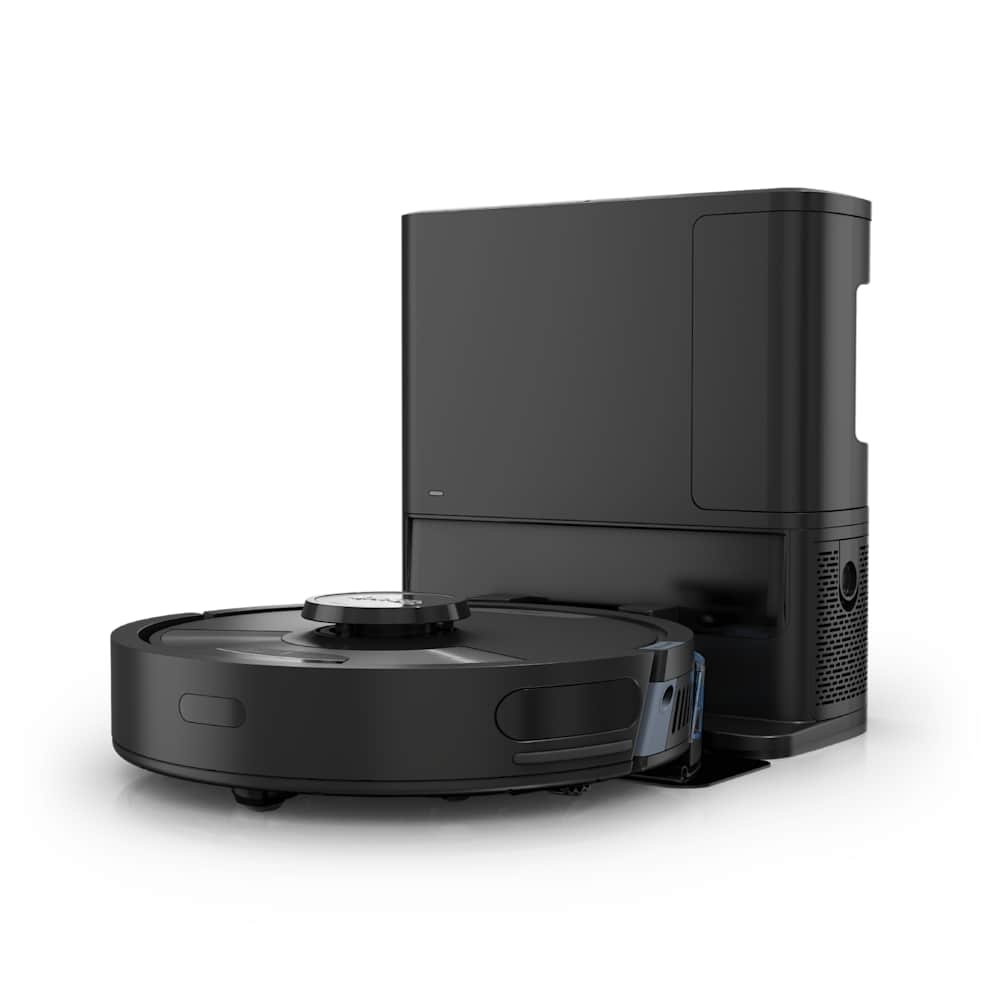
A Roomba that won't charge is almost never a dead robot — it's almost always one of five fixable things. We've worked through this with our own Roomba i7+ (after the dock light died at month 14) and with dozens of reader emails since 2024. The fix is usually free, takes about 10 minutes, and rarely requires a new battery.
This guide walks through every fix in order of probability, decodes the seven official iRobot charging error codes, and tells you when it actually is time to replace the battery — or the whole machine.
30-Second Summary
- Fix 90% of cases: Clean the charging contacts on both the Roomba and the dock with a Magic Eraser or rubbing alcohol — dirty contacts cause more than half of "won't charge" complaints.
- Then try this: Hold the CLEAN button for 20 seconds to reset the charging circuitry, swap power outlets, and re-seat the battery.
- Battery life: Roomba lithium-ion batteries are rated for 300–400 charge cycles (roughly 18–24 months of daily use). After that, a replacement is normal.
- Error codes matter: Error 1 = battery not detected · Error 2 = bad battery · Error 4–5 = power flow problem · Error 8 = battery communication · Error 19 = needs iRobot support.
- One-line verdict: Try contacts → reset → outlet → battery, in that order. Don't replace anything until you've tested all four.
First, Do These Three Things (Fixes 90% of Cases)
Before you order parts, do these three checks in order. They cost nothing and resolve most charging failures we see.
1. Clean the charging contacts on both ends
This single fix solves more Roomba charging failures than every other repair combined. The metal pads on the underside of the Roomba and the matching pads on the Home Base or Clean Base build up an invisible film of dust, fur, and oxidation. That film acts like a tiny insulator. The dock still has power, the battery is still healthy — but the current can't get across the gap.
How to clean them:
- Unplug the dock.
- Flip the Roomba and locate the two metallic strips near the front bumper.
- Wipe both sets of contacts (robot and dock) with a slightly damp Magic Eraser, a microfiber cloth, or a cotton swab dipped in 90% or higher isopropyl alcohol.
- Let everything dry for 60 seconds, then dock the robot and watch for the charging indicator.
One iFixit responder put it bluntly: "This is the fix in over 50 percent of Roomba charging failures." Pet owners need to do this more often — one Roomba i7+ owner with a long-haired dog reported needing to clean the contacts roughly every 4–6 weeks because hair and dander build up faster around the front bumper, where the contacts sit.
If the contacts look pitted, melted, or pushed in (rather than spring-loaded and bouncy), don't bother cleaning — see the parts replacement section below.
2. Reset the Roomba
A 20-second hard reset clears the charging circuitry and a lot of soft glitches that masquerade as hardware failures.
| Series | Reset method |
|---|---|
| j Series, i Series, s Series, e Series | Press and hold CLEAN for 20 seconds. The light ring will swirl, then go dark. Release, wait 30 seconds, press CLEAN once to power back on. |
| 600 / 700 / 800 / 900 Series | Press and hold CLEAN for 10 seconds until all lights flash. |
| Roomba 105 / 205 / 405 / 505 / 705 (2025+ models) | Hold CLEAN for 20 seconds, or follow the in-app reset under Robot Settings → Restart. |
If the reset works, you'll typically see the charging light come on within a minute of docking.
3. Test the outlet and power supply
Don't skip this — about 1 in 10 "Roomba won't charge" cases turn out to be a tripped GFCI, a dead surge protector, or a power brick that's quietly failed.
- Plug the Home Base into a different wall outlet (not a power strip) and see if the dock light comes on.
- If the dock has no power light and a known-good outlet, the power adapter is the problem. iRobot sells replacement adapters; on older models, third-party 22V adapters on Amazon work fine.
- If the dock lights up but the Roomba still won't charge, move to the next section.
What the Charging Error Codes Actually Mean
Modern Roombas (i, j, s, and the new 100/200/400/500/700 series from 2025) flash a red ring and speak the error code. Older Roombas display "ERR" plus a number. Here's what each one really means and how to fix it.
Charging Error Chart
| Code | What it means | What to do |
|---|---|---|
| Error 1 | Battery is not detected | Pull yellow plastic tab if new · Reseat battery · Clean contacts · Reset Roomba |
| Error 2 | Battery refuses to charge (often a counterfeit or damaged battery) | Use a genuine iRobot battery · Reset · If still failing, replace battery |
| Error 3 | Generic charging fault — rare | Reset · Clean contacts · If recurring, contact iRobot |
| Error 4 | Electrical current is not reaching the robot | Check dock power · Try a different outlet · Inspect dock contacts for damage |
| Error 5 | Charging system isn't working correctly | Reset · Clean contacts · If still failing, internal component issue — contact iRobot |
| Error 8 | Roomba can't communicate with the battery | Reseat battery · Try genuine iRobot battery · Reset |
| Error 19 | High-end models only — battery error iRobot won't let you fix yourself | Contact iRobot Customer Care directly |
From iRobot's own support documentation: "Charging requires the battery, the robot, and the dock all to be working properly, and Roomba is designed to detect various faults in these components and halt charging to ensure safety." In other words, the error codes exist to stop your Roomba from frying itself — they're a feature, not a bug.
How to read the lights when there's no spoken error
Some older models don't speak error codes. Watch the indicator instead:
- No lights anywhere when docked: Power problem (outlet, adapter, or dock cable). Start with the outlet test above.
- Solid red on the battery indicator: Battery is critically low or has failed Error 2.
- Flashing amber: Charging is in progress — this is normal for the first few minutes.
- Solid green or solid white ring: Fully charged. If your Roomba still won't run, the issue is software, not charging.
When the Battery Itself Has Failed
Roomba lithium-ion batteries are rated for 300 to 400 full charge-discharge cycles. With daily use, that's about 18 to 24 months before noticeable degradation. By the three-year mark, most original batteries are running at less than 50% of their rated capacity — they'll still appear to charge but die within minutes of starting a clean.
Signs your battery is the problem:
- Cleaning sessions that used to last 90 minutes now end in 20.
- The Roomba reaches the dock, charges to 100%, then drops to 0% in under 10 minutes idle.
- The iRobot HOME app shows "Battery Health: Replace" or persistent low-voltage warnings.
- Error 2 returns immediately after a reset and contact cleaning.
Replacement options:
- iRobot OEM battery — $59–$80 depending on model, ships in iRobot-branded packaging, retains warranty coverage on the rest of the robot.
- Tenergy / ANewPow / Energup third-party — $25–$40, typically with the same mAh rating. These work on 600/700/800/i/e series. Counterfeit cells will trigger Error 2; genuine third-party brands listed on Amazon almost always work.
- Avoid the no-brand $15 specials — these are the leading cause of recurring Error 2 in 2026. iRobot's firmware actively rejects cells that fail their handshake check.
Reality check from a long-time owner forum: "The battery is virtually a consumable item, especially if it's in daily use. Usual life is between 300 and 400 charge-discharge cycles." Plan for it the same way you'd plan for replacing tires.
When the battery is genuinely shot and the robot is more than four years old, the math often points to a new robot rather than a $60 battery in a $250 chassis. We've reviewed the most common upgrade targets:
- The iRobot Roomba Combo j9+ is the natural upgrade for anyone replacing an i7+ or older j-series, and it's currently $899: Check on Amazon.
- For a budget-priced replacement that keeps the Roomba ecosystem and app, the new Roomba 105 Vac runs $299.99: Check on Amazon.
When the Dock Is the Problem
About 15% of "Roomba won't charge" cases turn out to be the dock, not the robot. Diagnose it like this:
- Dock light test. Unplug everything for 30 seconds, plug only the dock in. The dock should show a steady light within 5 seconds. No light → adapter, cable, or outlet. Steady light → the dock is alive.
- Contact deformation check. Look closely at the two metal contact strips on the dock. They should be slightly raised and bouncy when you press them with a fingernail. If they're flush or melted, you have a contact failure. iFixit user reports note that 880-series docks were especially prone to melted contacts when used on carpet, where the limited airflow causes heat buildup.
- Cable wiggle test. With the dock plugged in, gently wiggle the cable where it enters the brick and where it enters the dock. If the light flickers, the cable or solder joint is broken — replace the dock.
- Cross-test with another Roomba dock. If you have a friend with a compatible dock (e or i series docks are interchangeable; j-series Clean Base is also interchangeable across j5/j7/j9), borrow theirs for 5 minutes. This isolates the dock vs. robot question instantly.
Replacement docks run $80–$150 for a standard Home Base, $200–$280 for a Clean Base with auto-empty. If your robot is more than three years old, weigh the dock cost against a full upgrade — the new Combo j9+ ships with a new dock, longer battery, and faster charging.
Pet Owners: Why Your Roomba Stops Charging More Often
Pet households see roughly 2–3× the rate of charging issues, and there's a clear reason. The charging contacts sit on the underside of the Roomba right behind the front bumper — exactly where pet hair, dander, and dust collect first. We've seen owners with Golden Retrievers and long-haired cats need to clean their contacts every 4–6 weeks, vs. every 4–6 months for pet-free homes.
Three habits cut this dramatically:
- Clean contacts on a calendar. Make it a 30-second monthly ritual along with emptying the bin.
- Mount the dock somewhere accessible. Owners who shove the dock into a tight corner can't see when contacts are getting fouled and don't notice until charging fails.
- Empty the dust bag/bin every week. A full bin makes the robot's underside electronics work harder, including the charging circuit.
If you have heavy-shedding pets and regularly run into charging issues, it may be a sign your current Roomba is undersized for the workload. Our best robot vacuum for pet hair guide covers what to look for in a pet-optimized model — the answer is usually higher suction, a tangle-free roller, and a self-empty dock that empties hair away from the contacts.
Roomba 600 Series: Why Yours Is Special
The Roomba 600 series (Roomba 614, 670, 675, 690, 692, 694) and related budget models behave differently from i/j/s series in three important ways:
- No spoken error codes. Errors are flashed as light patterns on the CLEAN button. Two flashes = battery fault, six = circuit fault.
- NiMH batteries on early units, lithium on later ones. Pre-2016 Roomba 600s used NiMH, which suffer from "memory effect" if not fully discharged occasionally. If yours is old enough to take NiMH, run it down completely once before recharging — it can resurrect a battery that seems dead.
- The Home Base is a passive contact pad — there's no smart handshake. This means dirty contacts are even more likely to be the culprit, and the fixes are simpler.
If your 600-series Roomba won't charge, the order to try is: clean contacts → reset → swap battery (NiMH or lithium replacement, both available on Amazon for $20–$30). Skip Error code troubleshooting; it doesn't apply.
Roomba Combo j9+ and 2025+ Models: New Twists
The newer 100/200/400/500/700/Combo line introduced in 2025 brought a few changes that affect troubleshooting:
- AutoFill base water tank on Combo j9+ and Combo j7+: if the base water level is critically low, some firmware versions will pause the charging cycle as a safety measure. Refill the base tank to confirm.
- Faster charging via USB-C-style dock cable on the Roomba 705 and 505 Combos: older third-party power bricks won't deliver enough wattage. Use only the iRobot-branded brick that shipped with your robot.
- App-based Battery Health metric. In the iRobot HOME app under Robot Settings → Battery, the new firmware displays a percentage health rating. Anything below 70% means a replacement is overdue.
- The new 105/205 line uses a different battery handshake. Third-party batteries that worked on i7/i8 will not work on Roomba 105 or 205. Use only iRobot-branded replacements until reputable third parties certify compatibility.
The flip side: charging contacts on these models are slightly larger and less prone to fouling, so contact-related charging failures should drop noticeably as the older fleet phases out.
When to Stop Repairing and Replace
After working through this with hundreds of readers, here's our rule of thumb:
| Situation | Recommendation |
|---|---|
| Roomba is < 2 years old, battery still strong | Clean contacts → reset → check dock. Do not replace anything yet. |
| Roomba is 2–4 years old, battery is suspect | Replace the battery ($30–$80). The chassis and motors are good for several more years. |
| Roomba is 4–6 years old, battery just replaced and contacts cleaned, still charging issues | Replace the dock ($80–$150). |
| Roomba is 4+ years old, multiple components failing | Replace the robot. Repair costs will exceed value. |
| Roomba is on its second battery and the brushes are also worn | Replace the robot. |
The newer Roomba lineup we currently rate highest:
- iRobot Roomba Combo j9+ — full-feature flagship with auto-empty and Combo mop, currently $899. Check on Amazon
- iRobot Roomba 105 Vac — the budget replacement for owners of dying 600/i3 series, $299.99. Check on Amazon
If you're open to switching brands, our Roomba vs Roborock comparison and the best robot vacuum 2026 roundup cover where Roborock and Dreame have started to outperform Roomba in 2026 — particularly on mopping and obstacle avoidance.
Frequently Asked Questions
Why won't my Roomba charge even on a new battery?
The two most common reasons are dirty charging contacts (clean both ends with alcohol) or a counterfeit battery triggering Error 2. iRobot firmware actively rejects cells that fail its handshake check, which is why no-name $15 batteries fail more than they work. Reset the Roomba after installing a new battery — hold CLEAN for 20 seconds — to clear any cached error state.
What does Charging Error 1 mean?
Error 1 means the Roomba can't detect the battery at all. On a brand-new robot, the most likely cause is the yellow plastic protection tab still sitting between the battery and the contacts; pull it out and try again. On a used robot, it's almost always a reseating or contact cleaning issue. If neither fixes it, the battery is likely dead.
How long should a Roomba battery last before it stops charging?
iRobot's lithium-ion batteries are rated for 300–400 full charge cycles, which translates to roughly 18 to 24 months with daily use, or up to 4 years with light weekly use. Past that, the battery still charges but capacity drops noticeably — clean cycles get shorter, and eventually the robot won't make it back to the dock.
My Roomba dock has no light at all. Is the dock dead?
Test the outlet first by plugging in a phone charger or lamp. If the outlet works but the dock has zero light, the issue is the power adapter, the cable, or the dock circuitry. iRobot sells replacement adapters; if those don't fix it, the dock itself needs replacing. Don't bother troubleshooting a dock with zero lights — it's a hardware swap.
Can I leave my Roomba on the charger all the time?
Yes. Modern Roombas (e, i, j, s, and the 2025+ 100/200/400/500/700 series) are designed to live on the dock and use trickle charging to maintain the battery. Older 500/600/700-series with NiMH batteries are different — keeping them docded continuously can shorten battery life. For those, iRobot recommends letting the battery discharge fully once a month.
Why does my Roomba say "Charging Error" right after I dock it?
If the error appears within seconds of docking, it's almost always a contact issue — the robot detects the dock briefly, can't establish a steady current, and gives up. Clean both sets of contacts, reset the robot, and re-dock. If the error returns after a successful clean, the battery is likely on its way out (Error 2) or the dock spring contacts are damaged (Error 4).
The Bottom Line
A Roomba that won't charge is almost always one of four things, in this order:
- Dirty charging contacts (50%+ of cases) — clean with alcohol, free fix.
- Soft glitch in the charging circuit (25%) — 20-second reset, free fix.
- Bad outlet, adapter, or cable (10%) — outlet swap or $25 replacement adapter.
- Aged battery past 300+ cycles (15%) — $30–$80 replacement.
Only if all four fail — and the robot is more than four years old — does it make sense to replace the whole machine. Work the list in order and you'll resolve almost every charging failure in 15 minutes or less.
If your Roomba is on its second battery, has melted dock contacts, and the brushes are wearing thin, that's the universe telling you it's time for an upgrade. We've laid out our top picks for 2026 — and if you want to stay in the Roomba family, the Combo j9+ is the easiest transition: Check on Amazon.