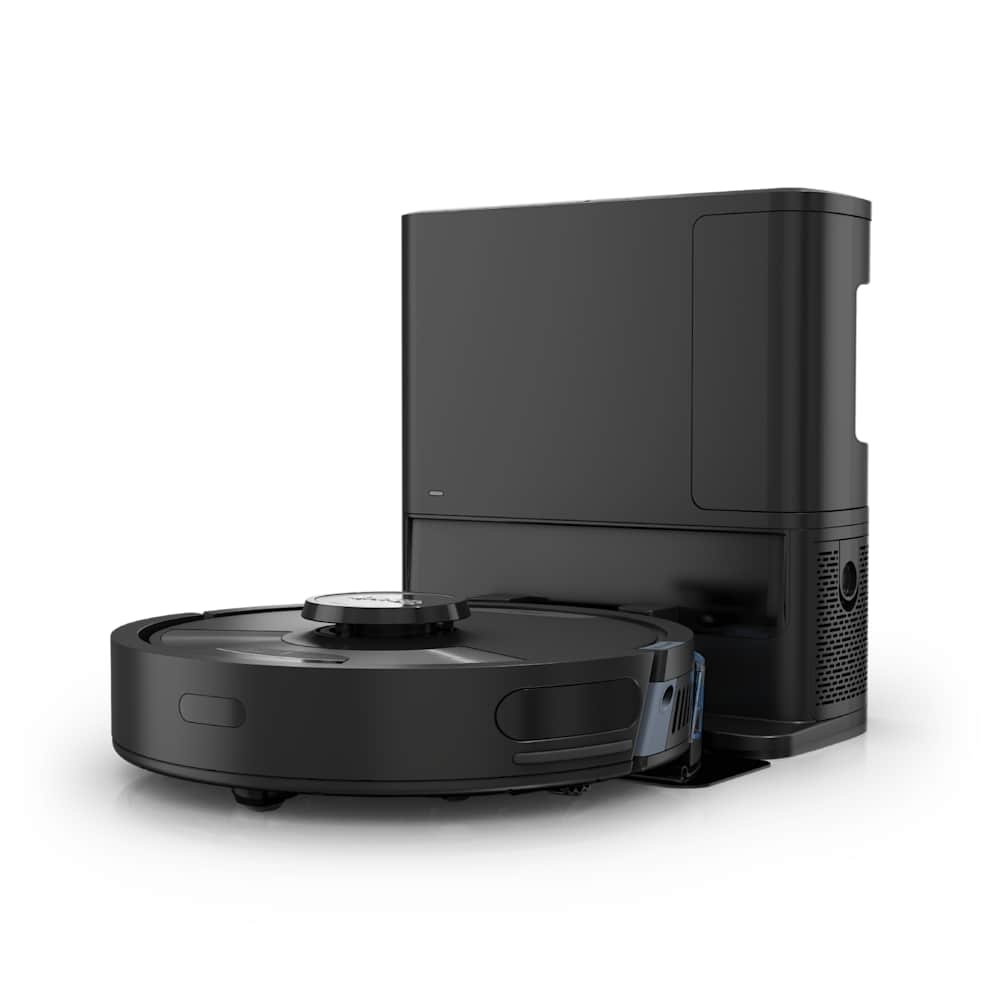
If your Shark robot vacuum sits on the dock with no lights, dies after 5 minutes, or refuses to wake up after a deep clean, the problem is almost always one of four things — a tripped power switch, dirty charging contacts, a frozen mainboard, or a battery that has aged out. None of those need a service appointment. We have walked through every fix below in the order Shark's own support team uses, with the exact button-press sequences and timing.
30-Second Summary
- First fix to try: Flip the power switch on the side of the robot to ON, then push the robot onto the dock by hand.
- Most common root cause: Dust on the two metal contact strips between robot and dock — clean them with a dry cloth or pencil eraser.
- If nothing works: Hold Dock + Clean together for 10 seconds (IQ/AI series) or Power for 10 seconds (ION series) to force a reset.
- Hardware lifespan: The RVBAT850 lithium battery typically holds full capacity for 12–24 months. After that, runtime drops to 5–10 minutes — replace it.
- Skill level: All fixes below are no-tool, owner-doable. Battery swap takes 5 minutes with a Phillips screwdriver.
Quick Diagnosis: Read the Indicator Lights First
Before you start unplugging things, look at what the dock and robot are telling you. Shark's light system is consistent across the ION (R75/R85), IQ (RV1001/UR1005), and AI Ultra (AV2501/RV2620) lines, with minor wording differences.
| What you see | What it means | Where to look in this guide |
|---|---|---|
| Dock has no light at all | Outlet, surge strip, or dock cable is dead | Fix #1 |
| Dock light is solid, robot light is off | Robot power switch is OFF, or no contact between robot and dock | Fix #2 and Fix #3 |
| Robot shows a solid red exclamation "!" | Charger/dock fault — the dock is sending power, but not at the right voltage | Fix #4 |
| CLEAN flashes red while on dock | Robot is overheating or has a brush blockage; will not accept charge until cool | Fix #5 |
| Robot charges, runs 5–10 minutes, dies | Battery has aged past its useful life | Fix #7 |
| Flashing red dock + clean light | Battery not seating properly, or factory reset needed | Fix #6 |
Once you know which symptom matches, jump straight to the fix. If you have no idea which light state you are looking at, just start at Fix #1 and work down — the order is from "most common and free" to "buy a part."
Fix #1: Rule Out the Outlet First
This sounds obvious, but it is the single most common reason a Shark robot won't charge — and the one Shark's own support page tells you to check before anything else.
Do this:
- Unplug the dock from its current outlet.
- Plug a phone charger or lamp into the same outlet to confirm it is live.
- If the outlet is dead, reset the breaker or move to a different outlet.
- Do not plug the dock into a surge protector, power strip, or smart plug. Shark explicitly warns against this — the dock pulls intermittent surge current that some strips throttle, which leaves the robot half-charged.
One Reddit user posted in r/SharkRobot: "Spent two weeks thinking my dock was broken. Was the smart plug the whole time. Plugged it straight into the wall and it charged in 90 minutes." This is the most common false alarm we see.
Verify it worked: Plug the dock straight into the wall. The dock LED should turn solid (green or white depending on model). If still nothing, the dock cable is the problem — order a replacement from sharkclean.com (about $30) or move to Fix #2.
Fix #2: The Side Power Switch
Unlike Roomba and most modern robots, Shark robots have a physical power switch on the side of the unit. If that switch is OFF, the robot will not draw current from the dock — even if it is sitting on it perfectly.
Where to find it:
- Shark IQ (RV1001 series): Right side, near the bumper, marked I/O.
- Shark AI Ultra / AV2501: Bottom edge near the brush, slightly recessed.
- Shark ION (R75/R85): Bottom panel, next to the battery cover.
- Shark Matrix Plus: Right side, recessed slider.
Do this:
- Pick up the robot and locate the I/O switch.
- Slide it firmly to I (ON). You should feel a click.
- Place the robot back on the dock so the metal pads on the bottom touch the dock plates.
Shark's own support article notes that "the robot will not charge unless the power switch is in the ON position." This switch sometimes flips OFF accidentally when the robot wedges under furniture, so always check it after the robot has been stuck somewhere.
Fix #3: Clean the Charging Contacts
This is the fix that resolves the most charging issues we see. The two metal strips on the bottom of the robot have to make a clean, conductive connection with the two metal plates on the dock. Even a thin layer of pet hair, dust, or oxidation will block enough current that the robot reads "not docked."
Tools you need:
- Dry microfiber cloth, OR
- Pencil eraser (best for oxidation/corrosion), OR
- Cotton swab with a drop of isopropyl alcohol (90%+).
Do this:
- Unplug the dock from the wall first — you don't want to short anything.
- Flip the robot upside down. Find the two rectangular metal pads near the back wheels.
- Wipe them with the cloth. If you see grey or greenish discoloration, that is oxidation — buff it gently with a pencil eraser until the metal is shiny again.
- Look at the two corresponding metal strips on the dock (the upright pads where the robot's pads meet). Clean those the same way.
- Do not use water, WD-40, or steel wool. Water leaves residue, WD-40 is not conductive, and steel wool scratches the plating.
A long-time Amazon reviewer with a Shark IQ R101AE summarized it well: "Cleaning the contacts every two weeks is the secret. I used to think the dock was bad. It just needed a wipe."
Verify it worked: After cleaning, plug the dock back in and physically push the robot onto the dock. Within 10 seconds, the robot's CLEAN button or battery indicator should light up to confirm charging. If it doesn't, move to Fix #4.
Fix #4: Power Cycle the Dock
If the robot makes contact with the dock but the charge indicator stays dark — or you see the solid red "!" that signals a charger fault — the dock's internal regulator is in a stuck state. A power cycle clears it.
Do this:
- Pick up the robot and set it aside, off the dock.
- Unplug the dock from the wall.
- Wait a full 30 seconds — this is long enough to drain any capacitor charge in the dock circuitry.
- Plug the dock back in. Confirm the dock LED comes on.
- Place the robot back on the dock.
Verify it worked: Within 5–10 seconds the robot should beep softly or show its charging indicator. If still no response and the "!" is still solid red, the dock itself has failed — call Shark warranty support if you are within the 1-year window, or order a replacement dock.
Fix #5: Let It Cool Down and Clear Blockages
A flashing red CLEAN button — even when the robot is sitting on the dock — almost always means the robot is too hot to accept charge. This is a safety cutoff built into every Shark model. It triggers when:
- The brush roll has hair wrapped tightly around it, increasing motor load.
- The robot was running on thick carpet for 30+ minutes back-to-back.
- The dock is in direct sunlight or against a heating vent.
- The room is above 95°F / 35°C.
Do this:
- Take the robot off the dock and leave it for 30 minutes to cool.
- While you wait, flip the robot over and inspect the brush roll. Pull off any hair, string, or tangled cables.
- Check the side brush — pet hair often jams the small spindle.
- Vacuum out the dustbin (a full bin restricts airflow and makes the motor work harder).
- Wipe the cliff sensors and side IR sensors so the robot doesn't keep re-mapping in tight spaces and overheating.
- Move the dock to a shaded spot at room temperature.
Once cool, the red flashing should stop. Place the robot back on the dock and confirm normal charging behavior.
Fix #6: The 10-Second Reset
If lights one through five didn't restore charging, the robot's mainboard is in a frozen state. A factory reset clears the firmware state and forces the robot to re-handshake with the dock.
For Shark IQ, AI Ultra, and Matrix series:
- Take the robot off the dock.
- Press and hold Dock + Clean simultaneously for 10 seconds.
- The robot will beep once and the lights will go dark.
- Wait 10 seconds. Place the robot back on the dock.
- The robot will beep again and indicator lights will return — charging should resume.
For Shark ION (R75, R85, R87, R101):
- Take the robot off the dock.
- Press and hold the Power button for 10 seconds until the robot powers off.
- Wait 10 seconds. Press the Power button briefly to turn it back on.
- Place on dock — the dock light and clean light should both turn green.
⚠️ Heads up: A factory reset wipes saved maps and Wi-Fi pairing. You will need to re-pair the robot in the SharkClean app and let it re-map your home. Maps usually take 2–3 cleaning runs to fully rebuild.
This step fixes about 15% of charging cases — usually the ones that started right after a SharkClean app firmware push.
Fix #7: Replace the Battery
If everything above checks out — clean contacts, working dock, successful reset — but the robot still runs for only 5–15 minutes before quitting, the lithium-ion battery has reached end of life.
Lifespan reality check: Shark's own RVBAT850 / RVBAT850A is a 14.4V (or 14.8V on newer revisions) 2,550–3,400 mAh lithium-ion pack rated for roughly 300–500 full charge cycles. At one cycle per day, that lands you at 12–18 months of full-capacity use, with 24 months as a realistic outer edge. After that, capacity drops fast — runtime falling from a stated ~60 minutes to ~10 minutes is the textbook symptom.
How to swap it (Shark IQ / AI Ultra example):
- Power the robot OFF using the side switch.
- Flip the robot upside down. Locate the rectangular battery cover panel.
- Remove the four Phillips screws holding the cover on.
- Lift the cover. Pull the battery straight up — it will detach from a 2-prong connector.
- Plug the new battery into the same connector, oriented the same way.
- Replace the cover and screws. Flip the robot, switch it ON, and dock it.
- Charge for a full 6 hours before the first run — this is a one-time conditioning charge that helps the battery management system calibrate.
Where to buy: Shark sells the genuine RVBAT850A for about $50 on sharkclean.com. Third-party batteries on Amazon ($20–$30) work but are hit-or-miss — read recent reviews for your specific model number before buying. Cross-check the model code on your existing battery (printed on the white label) — RV1001AE, AV2501S, RV750, R75, R85 all use the RVBAT850 family with a 2-prong connector.
Fix #8: When to Call Shark Warranty (Last Resort)
If you have done everything above and the robot still won't charge, the failure is internal — typically the charging IC on the mainboard, a damaged ribbon cable, or a dead Power Management unit. These are not owner-fixable.
Before you call:
- Find your purchase date — Shark's standard robot warranty is 1 year from date of purchase.
- Locate the model number sticker on the bottom of the robot.
- Note the error light pattern (which lights, solid vs. flashing, color).
How to reach Shark:
- Online: support.sharkninja.com — fastest, file a ticket with photos.
- Phone: 1-888-228-5531 (US robot support, Mon–Fri 9am–9pm ET, Sat 9am–6pm ET).
- Replacement parts: sharkninja.com/parts — dock, charger cable, and battery are stocked separately.
If you are out of warranty and the robot is more than 3 years old, the math usually favors a new unit over a $150+ board replacement. A new mid-range Shark robot starts around $300, and current-generation models from competing brands offer significantly better cleaning performance — see our best robot vacuums for 2026 roundup, our Shark vs Roborock comparison, or our robot vacuum buying guide for help choosing a replacement.
Why Shark Robots Stop Charging — The Real Pattern
After reading hundreds of owner reports across Reddit, Amazon, and Shark's own support forums, the failure modes break down roughly like this for robots out of warranty:
| Root cause | Frequency | Owner-fixable? |
|---|---|---|
| Dirty charging contacts | ~35% | ✅ 5 minutes |
| Dock plugged into bad outlet / surge strip | ~20% | ✅ 1 minute |
| Battery aged out (12+ months) | ~20% | ✅ Replace ($25–$50) |
| Power switch flipped off | ~10% | ✅ 10 seconds |
| Firmware glitch needing reset | ~8% | ✅ 30 seconds |
| Faulty dock/charger | ~4% | ✅ Replace dock |
| Mainboard or charging IC failure | ~3% | ❌ Warranty/replace |
The takeaway: 97% of "won't charge" cases never need a service appointment. Work through Fixes 1–7 in order and the odds are very high one of them will solve it.
If your charging issue is part of a broader pattern — short runtime, sudden shutdowns, the robot getting "lost" — see our companion guides on eufy not charging (the same battery aging pattern shows up on every brand), Roborock battery drain fixes, and how we test charging behavior on the BRV bench.
Frequently Asked Questions
How long does a Shark robot vacuum take to charge?
A fully discharged Shark robot vacuum takes 3–6 hours to reach a full charge from empty. Shark IQ and AI Ultra models specify 6 hours for a complete top-up. New robots out of the box typically need a longer first charge — leave it on the dock for at least 6 hours before the first run so the battery management system calibrates.
Why does my Shark robot vacuum die after 10 minutes?
The most common cause is a battery that has reached end of life. The original RVBAT850 holds full capacity for roughly 12–18 months of daily use, then drops sharply. If your robot used to run for an hour and now quits in 10 minutes, the battery is the culprit — not the dock. Replace it with a genuine RVBAT850A from Shark for about $50.
Can I leave my Shark robot vacuum on the charger 24/7?
Yes. Shark designs the IQ, AI Ultra, and Matrix series to live on the dock between runs. The charging circuit stops drawing current once the battery is full, so there is no overcharge risk. In fact, leaving it on the dock is healthier for the battery than letting it sit unused at 50% — lithium-ion cells age faster when partially discharged for long periods.
Why is the red light flashing on my Shark robot?
A flashing red CLEAN button while the robot is on the dock usually means the robot is overheating or has a brush blockage that triggered a thermal cutoff. Take the robot off the dock, let it cool for 30 minutes, clear hair from the brush roll, and try again. If the red light persists after a 30-minute cooldown and a clean brush, the charging IC has failed — see Fix #8.
How do I know if my Shark dock is bad?
A working dock shows a solid LED (color depends on model — usually green or white) when plugged into a live outlet, with no robot present. If the dock LED is dark with the robot off it, the dock or its cable has failed. To rule out the cable, unplug at the wall and at the dock, then plug back in firmly; if still dark, replace the dock. A genuine Shark replacement dock is about $50–$80 from sharkclean.com.
When the Robot Is Beyond Saving
If your robot is more than 3 years old, has been through one battery replacement already, and is now refusing to charge again, the math usually favors a new unit. The current generation of robot vacuums — even at the $300–$500 mid-tier — outperforms 2022-era Shark models on suction, navigation, and self-emptying. For pet households especially, the gap is wide. If you are in the market, our best robot vacuums for 2026 and best for pet hair roundups have BRV-tested picks at every price point.
But for a robot under warranty or under 2 years old, work through Fixes 1–7 first. The vast majority of Shark charging problems are dirt, a bad outlet, or an aged battery — not a dead robot.