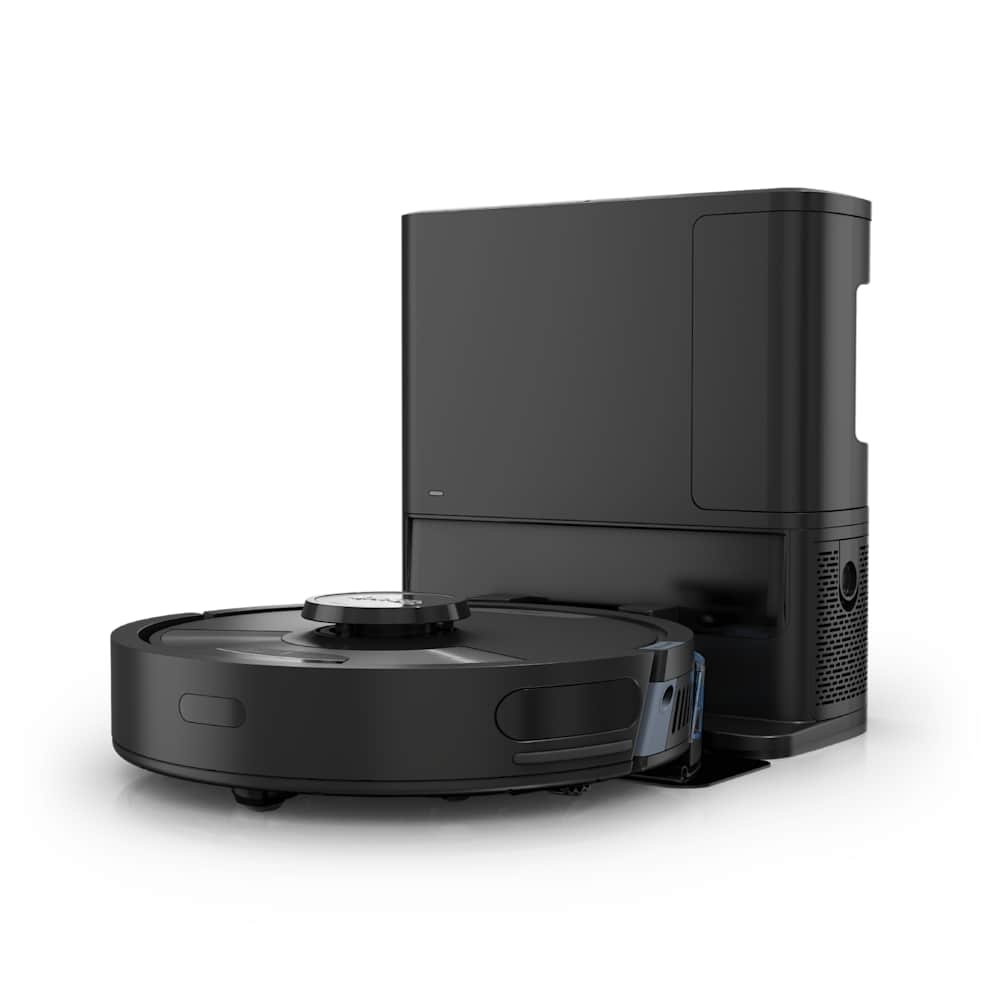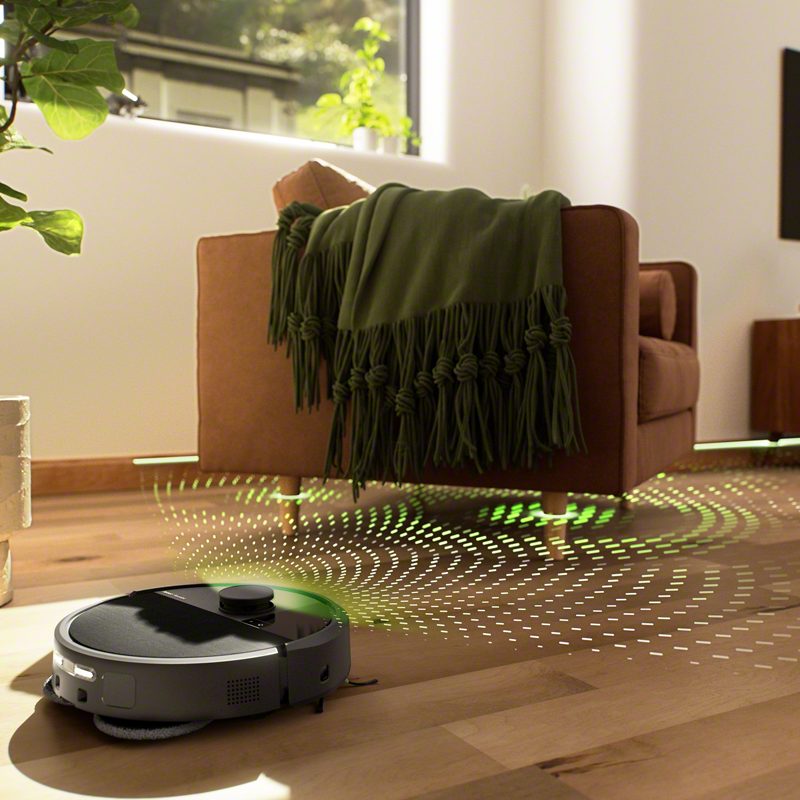
If your Dreame robot vacuum keeps remapping every run, refuses to save the floor plan, or comes back with a map that looks like a Picasso painting — you are not alone. After working through dozens of cases reported on the official Dreame forum and tracking the firmware patch notes for the X50, X40, L20, and L10s Ultra series, roughly 90% of mapping issues come down to four causes: dock placement, lighting/reflective surfaces, outdated firmware, or an interrupted first clean. This guide walks you through each fix in the order you should try them — start at the top and stop as soon as the map behaves.
30-Second Summary
- Most common cause: dock moved, robot picked up mid-clean, or initial mapping interrupted.
- First two things to try: update DreameHome app + firmware, and re-seat the dock with proper clearance (0.5 m sides, 1.5 m front).
- Last resort: delete the map and run a fresh Quick Map from scratch — this works in 95% of remaining cases.
- When to escalate: if a fresh map still won't save after a factory reset, the LiDAR module may be defective; contact Dreame support.
Quick Diagnosis: Match Your Symptom
| Symptom | Most Likely Cause | Jump to Fix |
|---|---|---|
| Map won't save after first clean | Initial cycle interrupted, or robot didn't return to dock | Fix 1 |
| Map disappeared after app update / restart | Cloud sync glitch, app cache | Fix 2 |
| Map is rotated, skewed, or overlapping | LiDAR confused by mirrors, reflective floors, or moving people | Fix 3 |
| Robot remaps every run, won't recognize home | Lost relocation — dock moved, room layout changed, or low light | Fix 4 |
| Map is missing rooms or has random gaps | Closed doors during mapping, dark surfaces, threshold too high | Fix 5 |
| Multi-floor map won't switch or won't save | Multi-floor toggle off, or maps not saved before moving robot | Fix 6 |
Fix 1: Map Won't Save After the Initial Clean
This is the single most common complaint, and it is almost always caused by the first cleaning cycle being cut short. Dreame's robots can only commit a map to memory once they have completed a full cycle and returned to the dock under their own power.
Do this:
- Place the robot back on the dock and confirm it shows a green/blue charge indicator.
- In the DreameHome app, tap the robot → Map Management → delete any partial map.
- Make sure the battery is at least 80% charged before starting.
- Walk the perimeter and open every interior door the robot should be able to enter.
- Tap Quick Map (or just start a regular clean if your model lacks Quick Map). Do not stop the robot, do not carry it back to the dock manually.
- Let it finish the entire cycle and return to the dock on its own. The map will commit to storage at that moment, not before.
"I kept stopping it to add the mop pads and my map vanished every time. Once I let it run the full cycle untouched, it stuck."
— Dreame forum user, X40 Ultra owner
If the cycle ends with the robot stuck somewhere, the map still won't save — pick it up, place it back on the dock, and start over with a clearer floor.
Fix 2: Map Disappeared After an App Update or Restart
Map data lives partly on the robot and partly in Dreame's cloud. App updates occasionally desync the two, and the app pulls a blank state on next launch.
- Force-quit the DreameHome app, then reopen it. Most "missing" maps come back here.
- If it's still gone, update DreameHome to the latest version from the App Store / Play Store. Dreame has shipped multiple sync fixes in 2026.
- Check the robot's firmware: Settings → Firmware Updates → Check for Updates. Toggle automatic updates on.
- If the map is genuinely gone after that, look for it under Map Management → History Maps — saved maps occasionally get demoted to history rather than deleted.
- If History Maps is empty too, you'll need to remap (see Fix 4). Maps cannot be restored from a backup that was never made.
Pro tip: once you have a map you like, screenshot the room partition view in the app. Dreame doesn't offer a true map export, but a screenshot makes it ten times faster to recreate room labels and no-go zones if the map ever vanishes again.
Fix 3: Map Is Skewed, Overlapping, or Rotated
This one is a LiDAR confusion issue, not a software bug. The LiDAR shoots a laser through anything reflective and reads the reflection as a wall — so floor-length mirrors, glass doors, and high-gloss tile can all create phantom rooms or "fold" the map onto itself.
Quick test: look at the broken map in the app. If you see a duplicate hallway, a room that doesn't exist, or two living rooms stacked at an angle, this is your problem.
Do this:
- Identify reflective surfaces on the affected floor: full-length mirrors, glass shower doors, polished black floors, large windows reaching the ground.
- Cover mirrors with a sheet or cardboard during the next remap (you can remove them after the map is saved — the LiDAR only needs one clean pass).
- Make sure the room is well-lit. Dreame's vSLAM/LiDAR fusion struggles in dim light, especially at night.
- Remove the broken map: Map Management → Edit → Delete Map.
- Run a fresh Quick Map.
According to a Vacuum Wars guide on X50 mapping fixes, "early releases were prone to spinning mid-job, vanishing maps, and random pad-drop errors" — but firmware patches throughout 2025 fixed most of those. If you haven't updated firmware in six months, do that first.
Fix 4: Robot Keeps Remapping Every Run (Won't Recognize Home)
When the robot starts a job but immediately announces "starting a new map" instead of using the saved one, it failed at relocation — it can't figure out where it is on the existing map. Dreame calls this a "Lost Map" event, and it's the second most common cause of mapping headaches.
The dock is the anchor. Move the dock more than a few feet, and the robot loses its reference point. Same goes for moving the robot itself between cleans without putting it back on the dock first.
- Put the dock back exactly where it was when the map was created. Mark its corners on the floor with painter's tape if you have to relocate it temporarily.
- Confirm dock placement meets Dreame's specs:
- Plugged in continuously (unplugging during a clean breaks positioning)
- Flat against a straight wall (not in a corner, not on carpet)
- 0.5 m (1.5 ft) clearance on each side
- 1.5 m (5 ft) clearance in front
- Wipe the LiDAR dome and front camera with a dry microfiber cloth. Dust on the LiDAR is one of Dreame's stated causes of relocation failure.
- Manually carry the robot to the dock, set it down, and wait until the app shows it as "Charging." Then start a new clean from the app — never from the button on the robot if you've moved it.
- If it still fails to relocate after three tries, the layout has changed too much (new furniture, moved couch). Time for a fresh map.
Fix 5: Incomplete Map (Missing Rooms, Random Gaps)
Open the door. Seriously, that fixes it more often than not.
- Walk the floor before mapping and open every door the robot should enter, including bathrooms, closets you want cleaned, and any room with a threshold under 20 mm.
- Pick up cables, low socks, plastic bags, and anything else that will trap the robot. A stuck robot on its first map = an incomplete map every time.
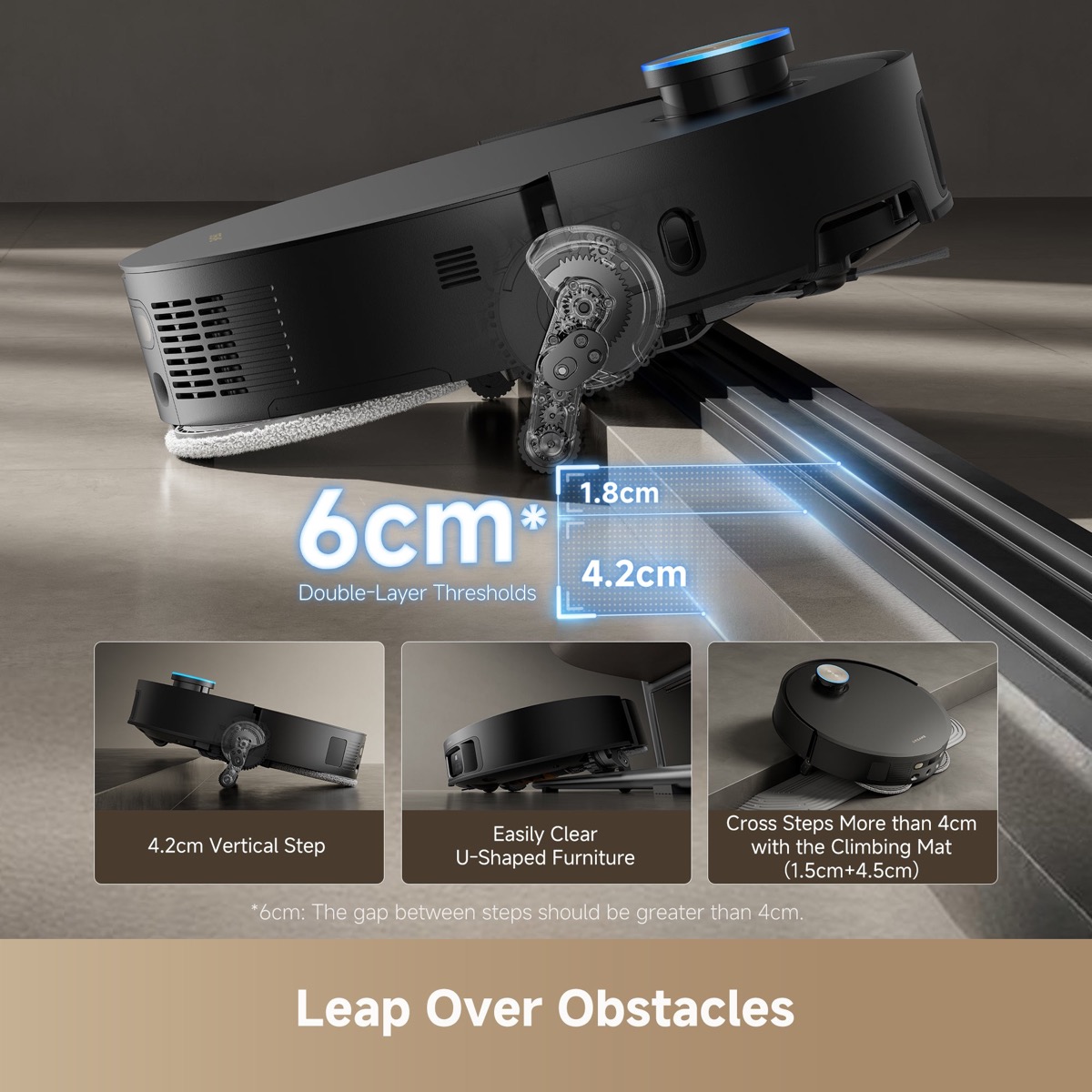
- For thresholds higher than 20 mm (most Dreame X-series can climb 20 mm; the X50 Ultra clears single thresholds up to 42 mm and stacked thresholds up to 60 mm using its ProLeap retractable-leg chassis), consider whether the robot can physically reach the room.
- If a room maps but appears as a black hole on the floor plan, that's usually a dark, light-absorbing surface — black slate tile, dark rugs, matte vinyl. The cliff sensors read these as a drop and the robot avoids them. Add a no-go zone over the dark area or replace the rug.
- After the cycle, edit the map: Map Management → Edit → Add Wall / Merge Rooms / Split Rooms to clean up any partition mistakes.
Fix 6: Multi-Floor Map Won't Switch or Save
If you have a two-story home and the robot only ever uses one map, multi-floor management probably isn't enabled.
- In the app: Map Management → toggle "Multi-floor Management" ON (or "Multi-layer map switch" on older models).
- Tap the + button to create a second map for the new floor.
- Carry the robot to the new floor, place it on a second dock (multi-floor mapping requires either two docks, or moving the dock with the robot — and re-pairing position each time).
- Run a Quick Map of the new floor with the robot on the new floor's dock. Do not start the map from a hand-carried position — it will fail relocation and create a corrupted layout.
- Save the second map. The app should now offer a floor selector when you start a clean.
Most L20, L30, X30, X40, X50, X60, and L40 Ultra models support up to 4 saved maps. Older models (L10, D10, F9) max out at 1.
Last Resort: Factory Reset
If five different remap attempts have failed and the firmware is current, the robot's stored map data may be corrupted at the device level. A factory reset wipes everything — maps, schedules, custom no-go zones, room labels — so do this only after the steps above.
On most models (X40, X50, L20, L40, X60):
- Power on the robot.
- Hold the Power button + the Home/Dock button simultaneously for ~10 seconds until you hear a confirmation tone.
- Remove the robot from the DreameHome app: Device Settings → Delete Device.
- Re-add the robot via the app, run a fresh Quick Map.
For the exact key combo on your specific model, check the user manual — Dreame has changed it across generations.
When to Contact Dreame Support
Open a support ticket if:
- A factory-reset robot still can't save a map after a clean cycle.
- The LiDAR turret doesn't spin when the robot is powered on (you can hear this clearly — silence = dead module).
- The map is consistently rotated 90° or 180° even after multiple remaps in a clean, well-lit room.
- Firmware update fails repeatedly with an error code.
Dreame's warranty covers LiDAR module replacement on most models — don't pay for repairs out of pocket if you're inside the warranty window.
Frequently Asked Questions
Why does my Dreame robot keep remapping every time I clean?
It can't relocate on the saved map. The dock has probably moved, the robot was carried somewhere instead of placed on the dock, or the LiDAR is dirty. Re-seat the dock with 0.5 m side / 1.5 m front clearance, wipe the LiDAR dome, and start cleans from the app while the robot sits on the dock.
How do I delete the map on a Dreame robot vacuum?
Open the DreameHome app → tap your robot → Map Management → Edit → Delete Map. This removes only the floor plan; schedules and device settings stay. To wipe everything, do a full factory reset.
Can I back up or transfer a Dreame map?
No. Dreame doesn't offer a real map export, and maps don't survive a factory reset or device removal. Your best workaround is to screenshot the partition view in the app so you can recreate room labels quickly after a remap.
Why is my Dreame map skewed or overlapping?
LiDAR is reading reflective surfaces — floor-length mirrors, glass doors, polished tile, large windows — as walls or rooms. Cover the reflective surfaces with cloth during a fresh remap, then remove them once the map is saved. Update firmware first; Dreame patched several skew bugs in 2025-2026.
Does Dreame support multi-floor mapping?
Yes, on most current models (L20, L30, X30, X40, X50, X60, L40 Ultra series). Toggle Multi-floor Management on in the app and create a separate map for each floor. Older models like the L10 and D10 only support one saved map.
If you've worked through all of this and you're still stuck, the issue is likely hardware. If you're considering an upgrade instead, our Dreame X50 Ultra review and Dreame X40 Ultra review cover the current flagships, and our broader robot vacuum buying guide walks through what to look for in a replacement. For other Dreame issues, see Dreame Not Charging and Dreame Not Connecting to WiFi. Our How We Test page explains the methodology behind every fix in this guide.