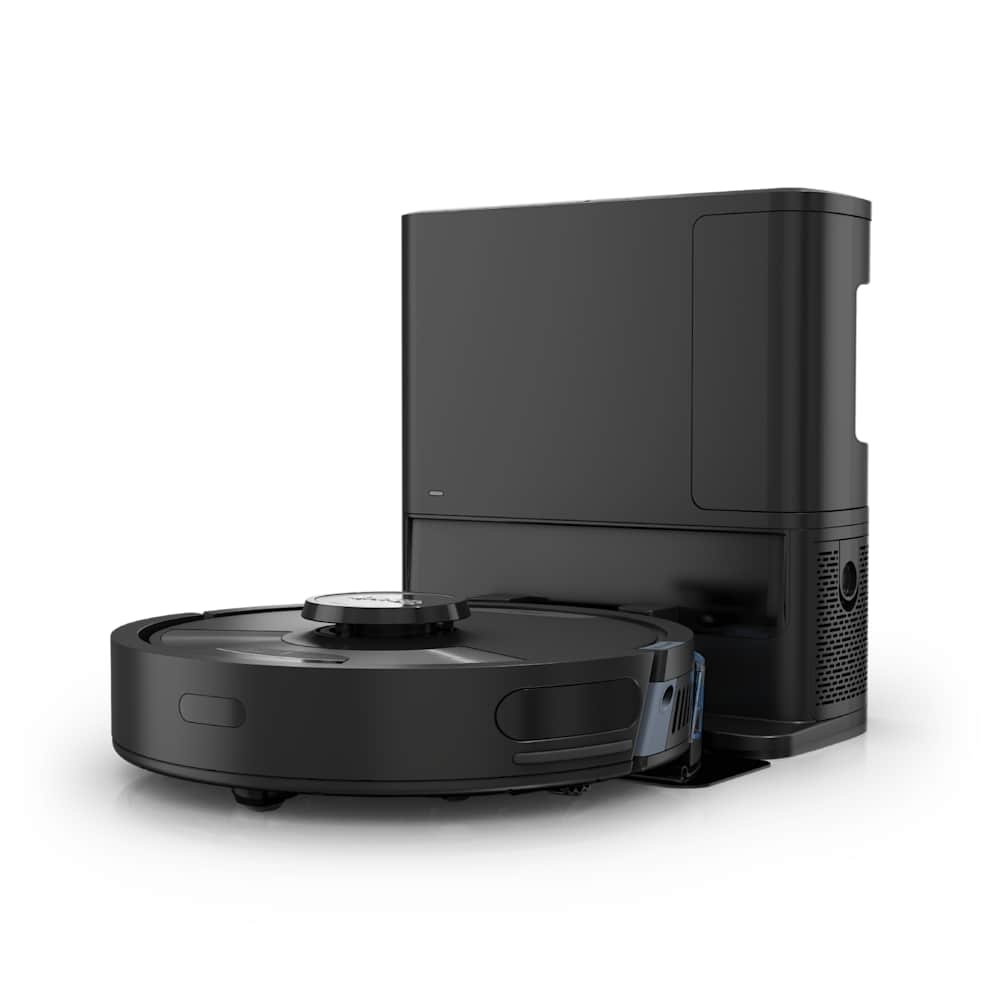
Your Roborock used to clean the whole downstairs on one charge. Now it limps back to the dock after 20 minutes — or worse, dies in the middle of the kitchen and forces you to carry it back. Battery drain is one of the most common Roborock complaints we see, and the good news is that most cases are not the battery itself. They are dirty contacts, a confused charge sensor, or a setting you can change in 30 seconds.
This guide walks you through the fixes in the right order — easiest and most likely first, battery replacement last. If you have to replace the cells, we tell you exactly when it is worth it and when you should just buy a new robot.
30-Second Diagnosis
- Robot dies after 15–30 minutes on Balanced mode → Skip to Fix #3: Recalibrate
- Battery drops 100% → 40% → 0% in a sudden cliff → Likely end-of-life, jump to When to Replace
- Robot leaves the dock with a low % even after a full night → Start with Fix #1: Clean the Contacts
- Battery drains while idle on the dock → See Battery Drain While Docked
Is It Actually the Battery? Rule Out These 3 Things First
Before you blame the cells, check these. About eight out of ten "battery" complaints we see in the Roborock forums are actually one of these three issues — not a dead battery. As one owner on the Roborock community forum put it after weeks of frustration: "Turned out to be the contacts. Wiped them once and it's been fine for six months."
1. Dirty charging contacts. The two metal pads on the underside of the robot and the matching strips on the dock pick up dust, hair, and a thin oxidation film. The robot looks like it is charging — the dock light is on, the app says "charging" — but barely any current is flowing. This is the single most common cause and the easiest fix.
2. Cleaning mode set to Max or Turbo. A Roborock that runs 150–180 minutes on Balanced will only run 60–90 minutes on Max. If you switched modes for one stubborn carpet day and forgot to switch back, your "battery problem" is actually a settings problem.
3. The dock or outlet itself. A loose plug, a flaky surge protector, or a wall switch that someone toggled off will all look like a battery fault from the app's point of view. If your robot is also throwing charging errors, work through our Roborock not returning to dock fix guide first — those checks rule out a docking problem and overlap with the contact-cleaning fix below.
Run through the fixes below in order. Stop at the first one that solves it.
Fix #1: Clean the Charging Contacts
Time: 5 minutes. Tools: Dry microfiber cloth, optional Magic Eraser sponge.
- Power the robot off and unplug the dock from the wall.
- Find the two metal contact pads on the underside of the robot (front edge, near where it docks).
- Find the matching strips on the dock. Both surfaces should look shiny and clean.
- Wipe both surfaces firmly with a dry microfiber cloth. If you see any darkening or film, rub them with a Magic Eraser until the metal looks bright again.
- Do not use water, alcohol, or contact cleaner — dry friction is enough and is what Roborock recommends.
- Plug the dock back in, set the robot on it, and watch for the charging indicator.
If the contacts were the problem, you will usually see the charge percentage start climbing within a minute. This single fix resolves the majority of "won't charge" and "Error 13" reports.
Fix #2: Reset and Power Cycle
Time: 2 minutes.
A power cycle clears temporary glitches in the battery management software — the same way restarting a phone fixes weird bugs without losing your data.
Soft reset:
- Take the robot off the dock.
- Press and hold the power button until the robot powers off (a few seconds).
- Unplug the dock from the wall outlet for at least 1 minute.
- Plug the dock back in, place the robot on it, and let it boot.
Hard reset (if soft reset did not help):
- With the robot off the dock, press and hold the power button for about 10 seconds until you hear the system restart sound.
- Place it back on the dock.
This will not erase your maps or app settings — those live on Roborock's servers. It just kicks the on-device software.
Fix #3: Recalibrate the Battery
Time: Two to three days, mostly hands-off.
Sometimes the battery itself is fine, but the charge gauge has drifted. The robot thinks it has 100% when it really has 80%, or it thinks 30% is "empty" and runs to the dock early. You fix this by forcing the gauge to re-learn the cells' actual capacity.
- Run the robot until it completely dies — keep starting cleaning jobs until the battery is at 0% and it shuts down on its own. If it returns to the dock, send it out again.
- Place it on the dock and let it charge uninterrupted to 100%. Do not cancel cleanings, do not pick it up.
- Repeat this full cycle 2–3 times. It takes a couple of days because each charge is 4–6 hours.
After 2–3 cycles, the gauge should match reality. If the robot still dies after 30 minutes on Balanced mode, the cells themselves are degraded — see the replacement section below.
Fix #4: Update the Firmware
Time: 5 minutes.
Roborock pushes firmware updates regularly, and several past versions had power-management bugs that drained the battery faster than they should have. To check:
- Open the Roborock app and select your robot.
- Tap the gear icon (settings) in the top-right corner.
- Scroll to Firmware Update or Device Information.
- If an update is available, tap Install and leave the robot on the dock until it finishes — interrupting a firmware update mid-write can brick the robot.
If you are already on the latest firmware, this fix is a no-op. But it costs nothing to check and rules out a known cause.
Fix #5: Stop Running on Max Mode
Time: 30 seconds.
This is the embarrassing one. A Roborock running on Max mode will burn through a full battery in about an hour — vs. nearly three hours on Balanced. If your "battery drain" started right after you ran a deep clean and forgot to switch back, this is your problem.
| Suction mode | Typical runtime | When to use |
|---|---|---|
| Quiet | ~180 min | Light dust, hardwood, late-night runs |
| Balanced | 150–180 min | Daily default for most homes |
| Turbo | ~110 min | Low-pile carpet, weekly deep clean |
| Max | 60–90 min | Heavy pet hair, embedded debris only |
In the Roborock app, tap the suction icon and set it to Quiet or Balanced for daily cleans. Save Max and Turbo for occasional deep cleans on heavy carpet, then switch back. Most users do not notice the cleaning difference on hard floors, and the runtime difference is enormous.
When to Replace the Battery
If you cleaned the contacts, reset the robot, recalibrated, updated firmware, and dropped to Balanced mode — and the runtime is still terrible — the cells are at end of life.
Lithium-ion batteries in robot vacuums are rated for about 500–800 charge cycles. If you run your Roborock daily, that works out to roughly two years before you see significant degradation. Three years is the practical limit for most owners.
Look for these classic signs that the cells are done:
- The "cliff drop": battery falls normally from 100% to about 40%, then suddenly crashes to 0%. This is the textbook signature of a worn-out lithium pack — one or more cells have lost capacity, and the gauge can't read them properly anymore.
- Runtime under 30 minutes on Balanced mode, even after recalibration.
- The robot leaves the dock at less than 100%, no matter how long it sits there.
- The robot dies within 2 minutes of leaving the dock, runs for a moment, then shuts off.
One long-time S5 Max owner described the cliff drop in a forum thread: "Goes from 100 to about 35 in 20 minutes, then it's just gone. Used to do my whole 1,400 sq ft on a charge." That is a textbook end-of-life pattern.
If you see any two of these together, a replacement battery is the right call.
Should you replace it yourself or just buy a new robot?
Replace the battery if: the rest of the robot still works well, your model is less than 4 years old, and you can find an OEM-quality replacement. Replacement packs run about $40–60 for older S5/S6/S7 and Q-series models.
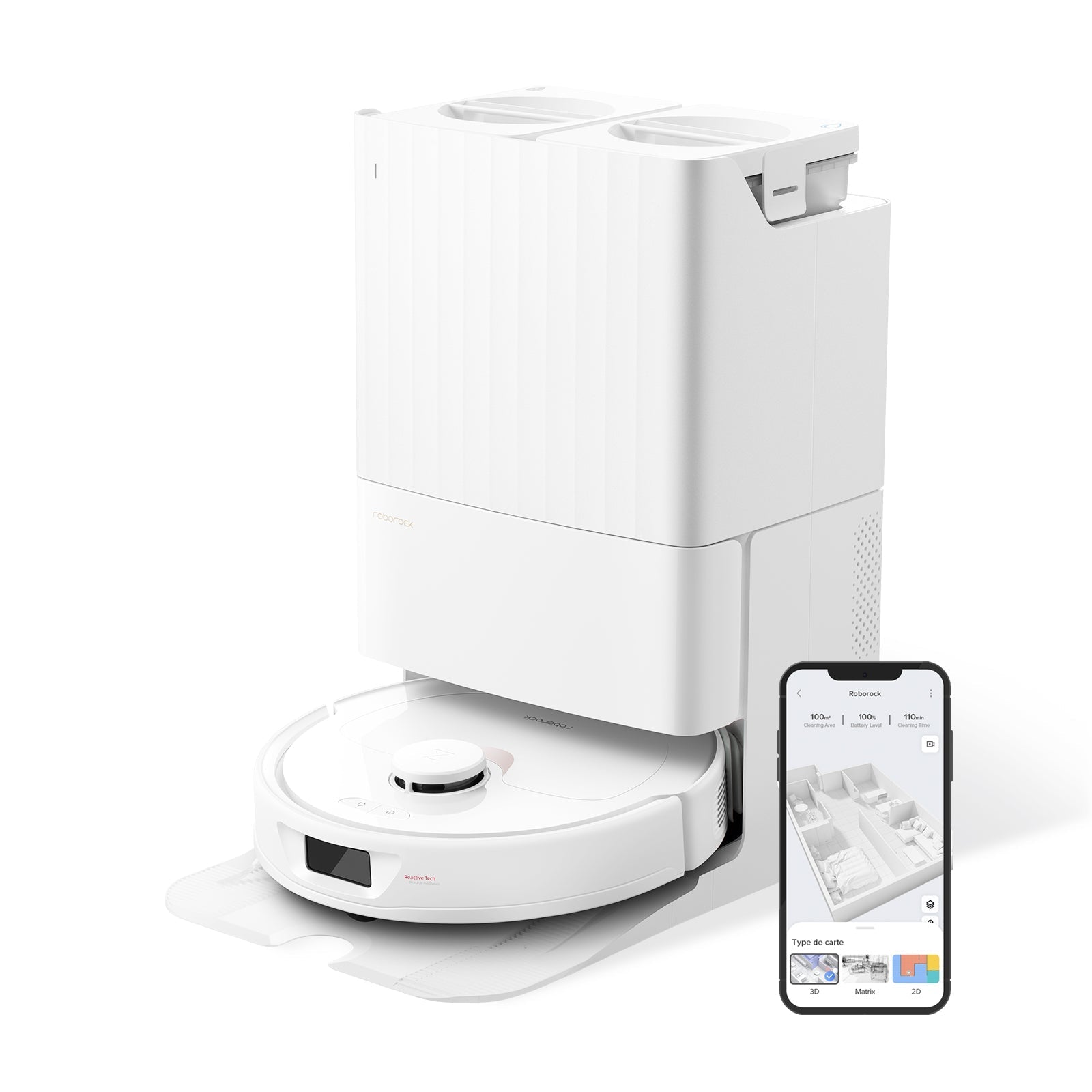
Buy a new robot if: the brushes, sensors, or LiDAR are also showing wear, the dock is falling apart, or your model is more than 4 years old. At that point you are pouring money into a robot that is one failure away from the bin — and 2026 mid-range models like the Roborock Qrevo Curv are dramatically better at navigation and mopping than even high-end robots from 2022. If you're shopping right now, our roundup of the best robot vacuums of 2026 covers every price tier.
How to replace a Roborock battery (overview)
The actual swap is straightforward on most models:
- Drain the battery to under 10% (safer to handle).
- Unplug the dock and power off the robot.
- Flip the robot over and remove 6–7 screws from the bottom cover with a Phillips driver.
- Lift the battery cover and pull the plastic tab to lift the old battery out.
- Carefully unplug the connector — keep the positive and negative leads from touching each other to avoid a short.
- Plug in the new battery, set it in the slot, and screw the cover back on.
- Place on the dock and let it charge to 100% and continue charging for 2 more hours to calibrate the new cells.
iFixit has model-specific photo guides for the S5, S6, S7, and Q5 series — search "iFixit Roborock [your model] battery." Do not skip the guide. The connector orientation matters and can damage the new battery if you force it.
Battery Drain While Idle on the Dock
A few users report a different problem: the robot slowly loses charge while sitting on the dock, even though no cleaning jobs are running. This usually points to one of two things.
The dock's power supply is not delivering full current. Try a different outlet, ideally a wall outlet rather than a power strip. If a different outlet fixes it, your old outlet or strip is the issue.
The robot is running background tasks. Some firmware versions wake the robot for map updates or Wi-Fi check-ins more often than they should. A firmware update (Fix #4) usually resolves it. If the drain persists after updating, it is an early sign that the battery management board itself is failing — at which point a replacement or warranty claim is your only option.
Still Not Fixed? Contact Roborock Support
If you have worked through every fix and your robot is less than 12 months old, you are still within the standard warranty window. Roborock will usually ship a replacement battery or repair the unit at no cost. Have your serial number ready — you can find it on a sticker under the dust bin.
Open a ticket at support.roborock.com or use the "Help" section in the Roborock app. Describe the symptoms, mention which fixes you have already tried, and include the runtime numbers — the more concrete you are, the faster support can act.
Frequently Asked Questions
How long should a Roborock battery last?
About 2–3 years of daily use, or 500–800 full charge cycles. Lithium-ion cells slowly lose capacity from the day they are manufactured, but the loss is gradual until you hit the end of the cycle count. If you only run your Roborock 3–4 times a week instead of daily, you can stretch the same battery to 4 years or more.
Can I replace a Roborock battery myself?
Yes, on most models. Roborock S5, S6, S7, and Q5 series batteries are accessible by removing 6–7 screws on the bottom cover. iFixit publishes detailed, model-specific guides. Newer Saros and Qrevo models are similar but have slightly different cover layouts. The job takes about 15 minutes if you have done it before, 30 minutes the first time.
Why is my Roborock dying after 5 minutes?
Almost always one of three things: the charging contacts are filthy and the robot was barely charged when it left the dock, the battery gauge is wildly out of sync (recalibrate it), or the cells are at end of life. Run through Fix #1 and Fix #3 in order. If neither helps, it is time for a new battery.
Does leaving my Roborock on the dock all the time damage the battery?
Not significantly on modern Roborocks. They use trickle charging and stop drawing meaningful current once the battery hits 100%. The bigger killer is heat — if your dock is in a hot closet or in direct sunlight, that will degrade the cells faster than constant docking ever will. Keep the dock somewhere room temperature and you are fine.
Is battery drain covered under Roborock warranty?
Yes, within the first 12 months. Roborock's standard warranty covers the battery as a defective component if the runtime is dramatically lower than spec out of the box or fails prematurely. After 12 months you are paying for a replacement yourself. Some sellers (especially Amazon third-party listings) offer extended warranties — check your purchase confirmation.